
Simplelists supports SAML2 single sign-on (SSO) authentication, allowing your users to access their mailing list accounts using existing corporate credentials. Configuring SAML2 with Simplelists involves creating an Authentication Provider in your Simplelists account and then configuring your Identity Provider (IdP) such as Microsoft Entra ID, Okta, or ADFS. This guide walks you through each step of the Simplelists configuration process.
- Creating a Simplelists Authentication Provider
- Configuring your Identity Provider (IdP)
The following describes the creation and configuration of the Simplelists Authentication Provider.
What you’re setting up
SAML2 (Security Assertion Markup Language 2.0) allows your users to sign in to Simplelists using the same credentials they use for your organization’s other systems. Instead of managing separate Simplelists passwords, your Identity Provider (such as Microsoft Entra ID, Okta, or ADFS) handles authentication centrally. This configuration establishes the “trust relationship” between Simplelists (the Service Provider) and your IdP. SAML2 is an OASIS open standard that has been widely adopted for enterprise single sign-on solutions.Create an Authentication Provider
What you’re doing here
Before Simplelists can accept logins from your Identity Provider, you need to register that IdP within your Simplelists account. This step creates the “container” that will hold all the SAML configuration details – certificates, URLs, and attribute mappings – that allow the two systems to communicate securely.-
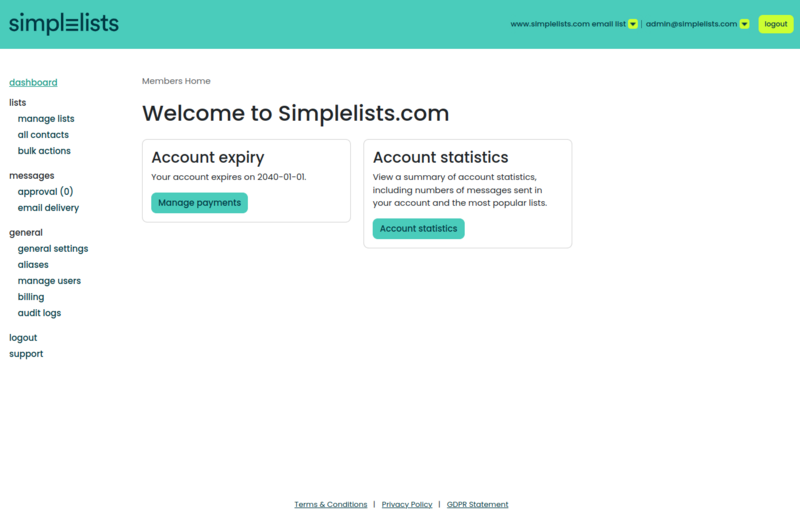
Log into your Simplelists instance as the administrator
-
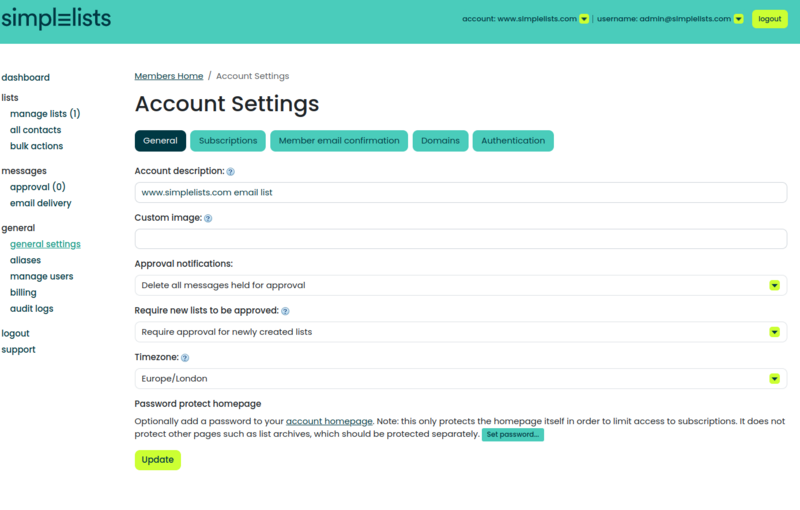
From the left menu click general settings
-
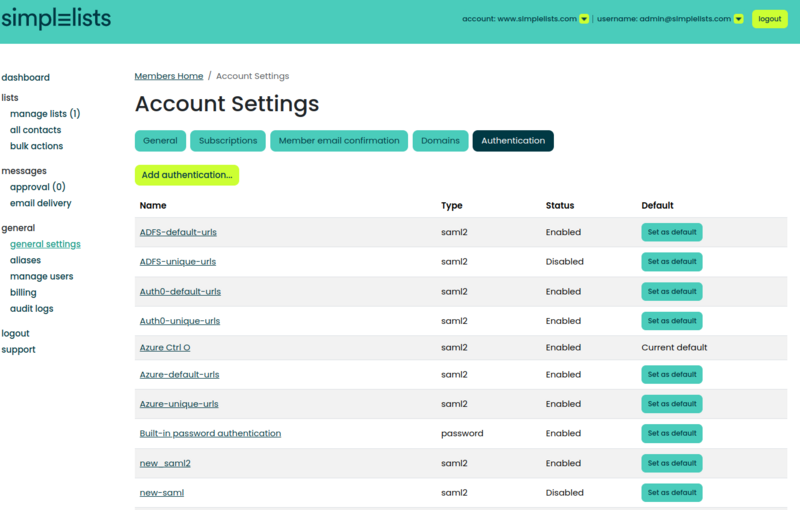
Under the Account Settings click the Authentication tab
-
Click Add Authentication... button
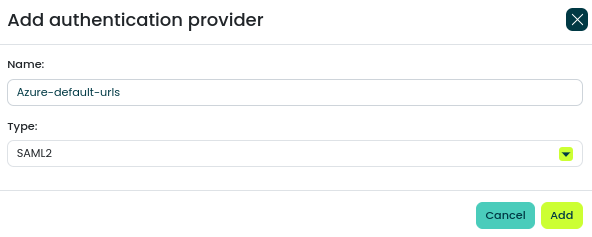
- Enter a unique Name
- Ensure that the Type is set to SAML2
- Click Add
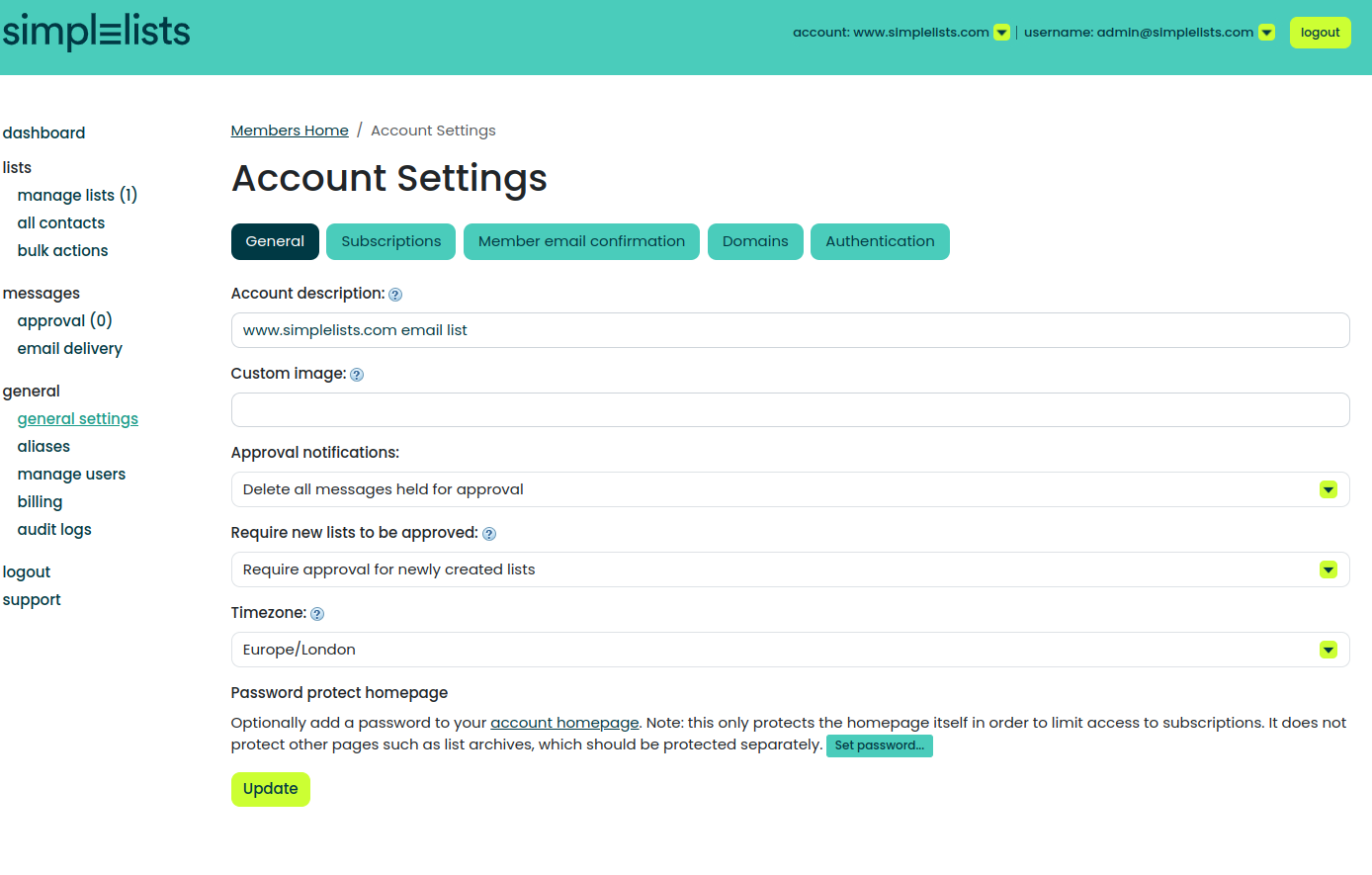
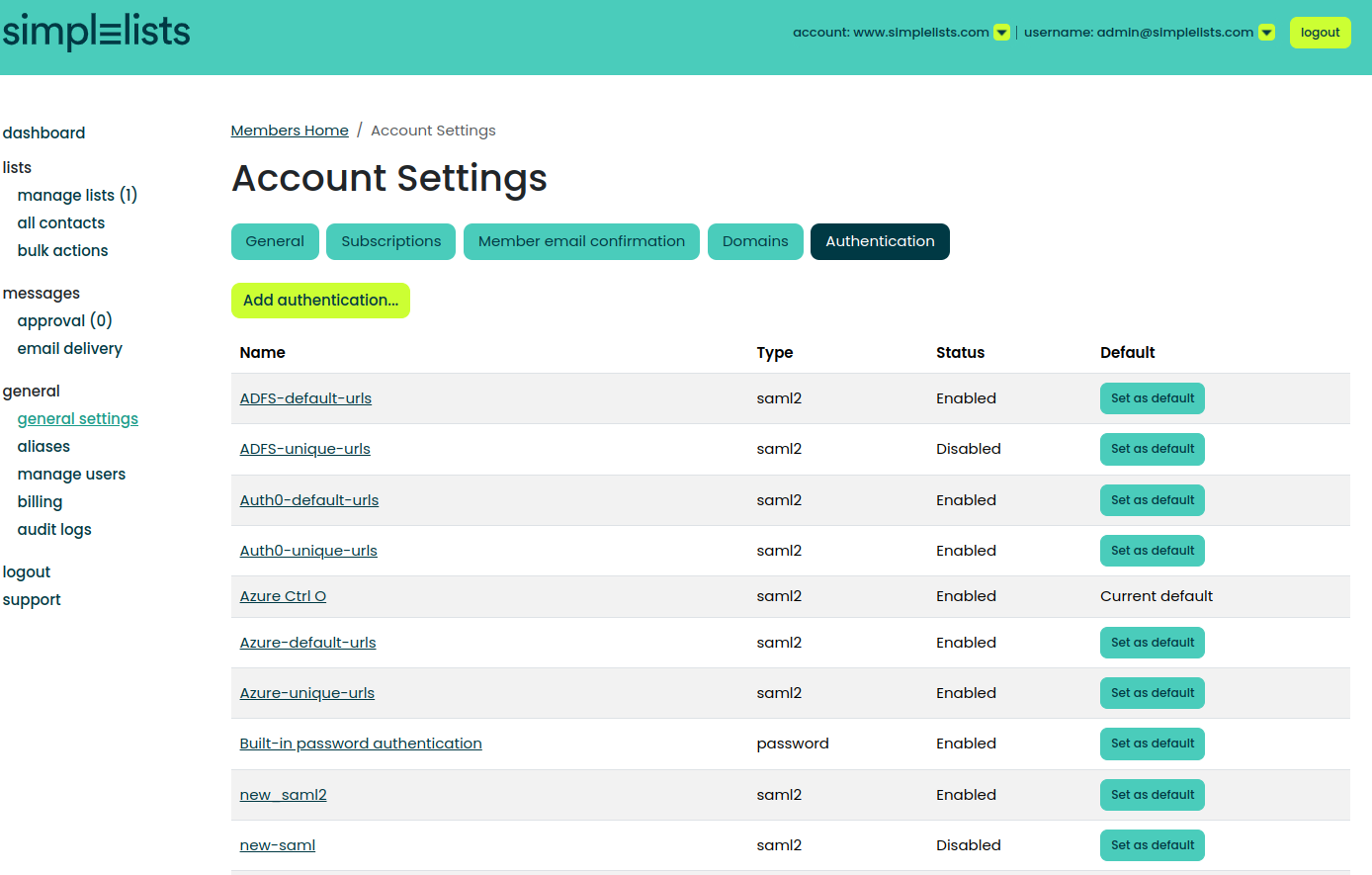
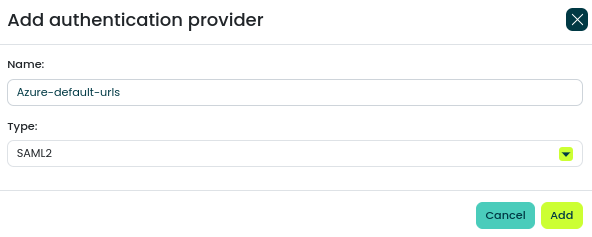
Why this matters
The name you choose here will appear in the user interface when an administrator is assigning the user’s authentication method, and it helps you identify this provider if you later add multiple authentication sources. Choose something descriptive, such as “Company Azure AD” or “Corporate SSO”, so it’s clear to both administrators and end users.Common issues at this step
- Authentication tab not visible: You may not have administrator privileges on this Simplelists instance. Confirm your account has the necessary permissions.
- “Name already exists” error: Each authentication provider must have a unique name. Check your existing providers and choose a different name.
Configure the Authentication Provider
What you’re doing here
Now that the provider exists, you’ll configure the technical details that allow Simplelists and your IdP to exchange authentication data securely. This involves setting URL preferences, mapping user attributes, and exchanging certificates and metadata files between both systems.-
Under the Account Settings click the Authentication tab
-
Click the Name of the Authentication provider you created
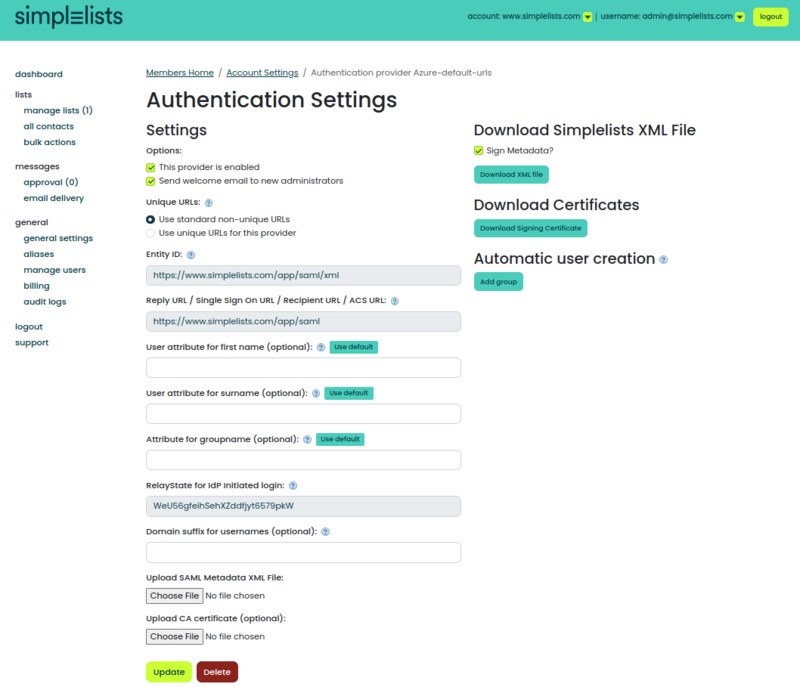
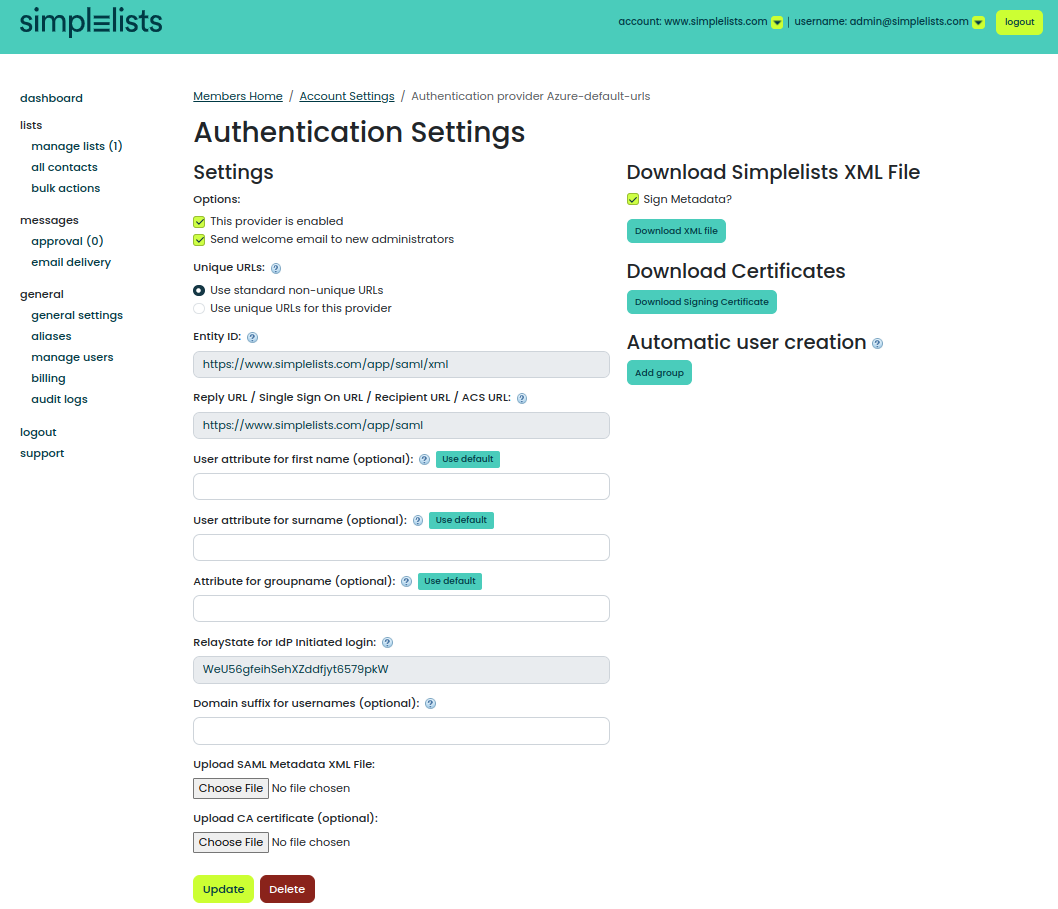
Select Unique or Default URLs
This option selects whether your IdP points to a unique URL versus a default URL for the Entity ID or Reply URL.
Strictly speaking, there is no difference between the default versus unique URLs. However, unique URLs allow more flexibility should you need to have multiple Simplelists instances served by your IdP.
The unique URL should probably be chosen.
Why this matters
The Entity ID and Reply URL are how your IdP identifies and communicates with Simplelists. If you ever need to connect a second Simplelists instance (for example, a staging environment) to the same IdP, unique URLs prevent conflicts. For most organizations, selecting “unique” provides future flexibility with no downside.Common issues at this step
- IdP rejects the Entity ID: If you change this setting after initial configuration, you’ll need to update the corresponding value in your IdP. The Entity ID must match exactly between both systems.
- Redirect errors after login: If the Reply URL in your IdP doesn’t match the one Simplelists expects, authentication will fail. Double-check you’ve entered the correct URL format from this screen.
Set the Attributes
User
The user attribute values entered for the following must match the values provided in the SAML2 assertion (and the attribute names you configure in the Identity Provider’s (IdP’s) configuration). These values are used to automatically update the user’s name.
Click the Use default button to enter a default value that is often provided by IdPs.
Enter Attribute names for:
- User attribute for first name (optional)
- User attribute for surname (optional)
Why this matters
These attribute mappings tell Simplelists which fields in the SAML assertion contain the user’s first name and surname. When configured correctly, user profiles in Simplelists are automatically populated and stay synchronized with your directory. Without these mappings, users may appear with missing or generic names, making it harder to identify who’s who in your email lists.Common issues at this step
- Names not appearing for users: The attribute names are case-sensitive and must exactly match what your IdP sends. Check the SAML assertion your IdP generates to confirm the claim names.
- Partial names appearing: If only the first name or surname displays, one of the attribute mappings is incorrect or the IdP isn’t sending that particular claim. Review your IdP’s attribute configuration.
Group
The group attribute is used to find the groups that may be passed from the Identity Provider via the SAML2 assertion.
Click the Use default button to enter a default value that is often provided by IdPs.
Enter the Attribute for groupname (optional)
When to configure groups
Group attributes become valuable when you want Simplelists permissions to be driven by your directory groups. For example, members of “Finance Team” in your directory could automatically receive specific Simplelists permissions. This is an advanced feature – skip it during initial setup and return once basic SSO is working.Domain suffix for usernames (optional)
The user’s email domain can be used to find the proper authentication provider to be used for IdP initiated login. This is optional and the unique URL is recommended instead.
Why this matters
If your organization has multiple authentication providers (for example, different IdPs for different subsidiaries), the domain suffix helps Simplelists route users to the correct one based on their email address. For most single-IdP setups, you can leave this blank and rely on the unique URL instead.Values required for the IdP configuration
The following items will be required to configure the IdP:
- RelayState for IdP Initiated login
- Simplelists XML File
- Simplelists Certificates
What you’re doing here
You’ve configured how Simplelists will receive authentication data. Now you need to give your IdP the corresponding information so it knows how to send that data correctly. These downloads provide your IdP with Simplelists’ identity, endpoints, and the certificate needed to establish trust.RelayState
The RelayState value can be used in the IdP configuration as the default value sent to Simplelists during an IdP initiated login.
If the IdP sends a RelayState value during the IdP initiated login this value is verified to determine that it matches the value configured in Simplelists.
Why this matters
RelayState acts as a security check for IdP-initiated logins (where users click a Simplelists tile in their IdP portal rather than navigating directly to Simplelists). It ensures the login request genuinely originated from your configured IdP and not from a malicious source attempting to exploit the authentication flow.Download Simplelists XML File
Many IdPs allow uploading a metadata XML from the application to provide the proper configuration settings.
- Click the Download XML file button
- Save the saml.xml file so it can be uploaded to the IdP.
Why this matters
The metadata XML contains all the technical details your IdP needs to communicate with Simplelists: the Entity ID, assertion consumer service URLs, supported bindings, and the Simplelists certificate. Uploading this file to your IdP (rather than entering values manually) reduces the chance of configuration errors and ensures consistency between both systems.Common issues at this step
- IdP rejects the XML upload: Some IdPs don’t handle signed metadata. Uncheck the “Sign Metadata?” option, download the XML again, and retry the upload.
- XML appears to upload but values aren’t populated: Your IdP may require manual entry. Locate the relevant values from the Simplelists authentication provider page (EntityID, ACS URL, certificate) and enter them manually in your IdP.
Simplelists Certificates
Simplelists signs the SAML2 AuthnRequest. The IdP can verify that the received AuthnRequest was signed by Simplelists.
- Click the Download Signing Certificate button
- Save the simplelists.cer file so it can be uploaded to the IdP.
Why this matters
The signing certificate allows your IdP to cryptographically verify that authentication requests genuinely come from Simplelists. This prevents attackers from forging requests. While some IdPs make certificate verification optional, uploading this certificate strengthens the security of your SSO implementation.Upload IdP values
Simplelists requires two Identity Provider files to be uploaded to the Authentication provider. These need to be downloaded from your IdP.
- SAML Metadata XML file
- CA certificate
What you’re doing here
Just as you gave Simplelists’ metadata to your IdP, you now give your IdP’s metadata to Simplelists. This completes the two-way trust relationship. Simplelists needs to know your IdP’s endpoints and certificate to verify that incoming SAML assertions are legitimate.Why this matters
The IdP metadata contains the certificate your IdP uses to sign SAML assertions. Without it, Simplelists cannot verify that login responses genuinely came from your IdP, which would be a critical security gap. The CA certificate is needed so that Simplelists knows to trust your IdP’s signing certificate.Common issues at this step
- “Invalid signature” errors during login: The certificate in the uploaded metadata may not match what your IdP is using to sign assertions. Re-download the metadata from your IdP and re-upload to Simplelists.
- Certificate validation failures: Make sure that the CA certificate has been uploaded as well. Check your IdP documentation for how to export the CA chain.
Example values
| Field Name | Value |
|---|---|
| User attribute for first name (optional) | http://schemas.xmlsoap.org/ws/2005/05/identity/claims/givenname |
| User attribute for surname (optional) | http://schemas.xmlsoap.org/ws/2005/05/identity/claims/surname |
| Attribute for groupname (optional) | http://schemas.microsoft.com/ws/2008/06/identity/claims/groups |
| Domain suffix for usernames (optional) | example.com |
Simplelists Optional Configuration
When to configure this section
The following settings are for organizations that want to automate user provisioning through SAML. These are advanced features – get basic SSO working first, verify users can log in successfully, and then return to configure automatic user creation if needed.
Simplelists - Create Automatic user creation
For IdP initiated login you can choose to have users automatically created. Simplelists uses “Automatic user creation groups” to assign user permissions. If no groups are provided you can create the user in Simplelists first and assign security there.
-
Open the Authentication Settings that you created above
-
Set the Attribute for groupname (optional)
- http://schemas.microsoft.com/ws/2008/06/identity/claims/groups
- Click the Add Group Button
Why this matters
Automatic user creation eliminates the need to manually create Simplelists accounts before users can log in. When combined with group mapping, users receive appropriate permissions based on their directory group membership – streamlining onboarding and ensuring permissions stay in sync with your directory. However, misconfiguration here can either block legitimate users or grant unintended access, which is why it’s best to configure this after verifying basic SSO works.Create the Automatic user creation group
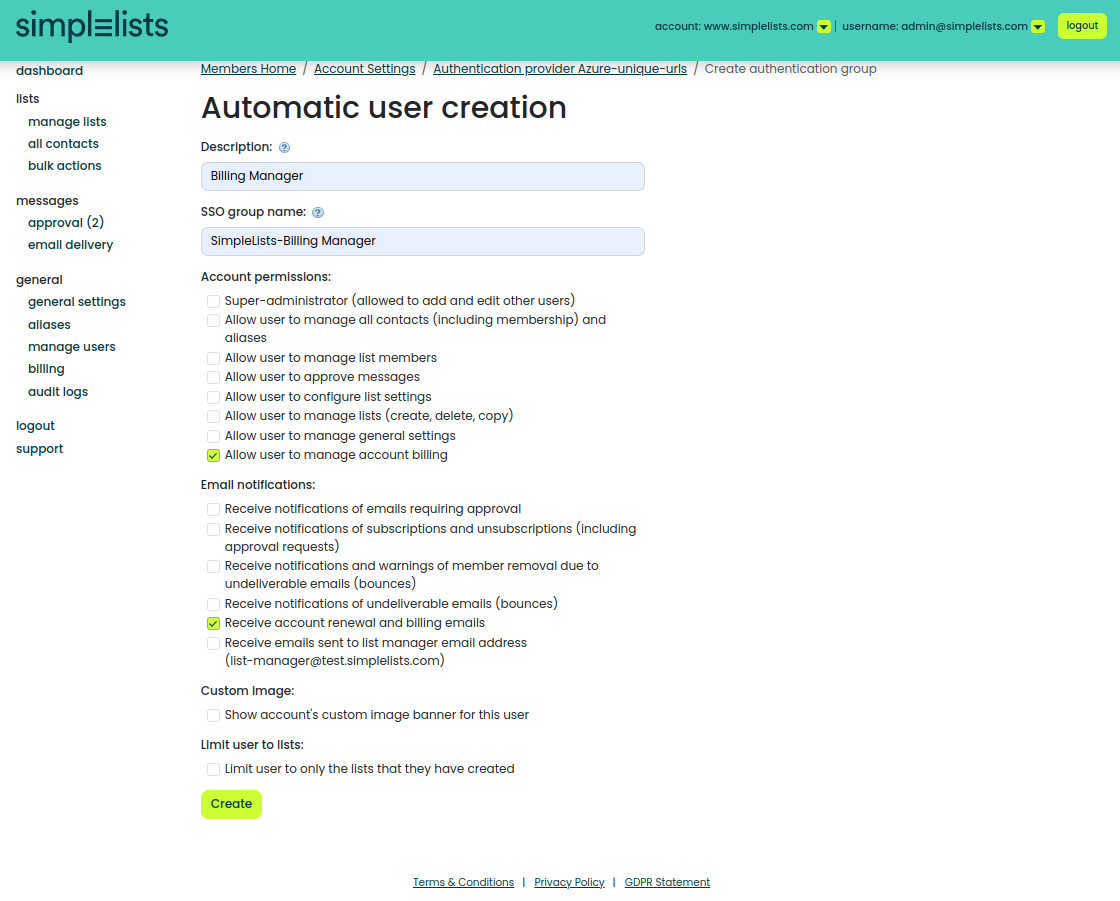
-
Enter a free form description (It will appear on the Authentication Provider Page)
- Example: Billing Manager
-
Enter the SSO Group Name (that will be sent by your Identity Provider (IdP))
- Example: SimpleLists-Billing Manager
- Select the Account Permissions
- Click Create
Why this matters
The SSO Group Name must exactly match the group identifier your IdP includes in the SAML assertion. For Azure AD, this is typically a GUID or the group’s display name, depending on your configuration. If these don’t match, users won’t receive the expected permissions – or worse, as noted in the warning above, users may be removed if group matching fails entirely.Common issues at this step
- Users created but have no permissions: The SSO Group Name doesn’t match what the IdP is sending. Check the actual SAML assertion to see the exact group values being transmitted.
- Users are being deleted on login: You’ve configured group matching but the IdP isn’t sending any groups (or isn’t sending them in the expected attribute). Either remove the groupname attribute configuration or ensure your IdP is configured to include group claims.
- Azure sending GUIDs instead of names: Azure AD can send group claims as either GUIDs or display names depending on configuration. Ensure the SSO Group Name matches whichever format your Azure AD is configured to send.
Set Simplelists user to use the SAML Provider
What you’re doing here
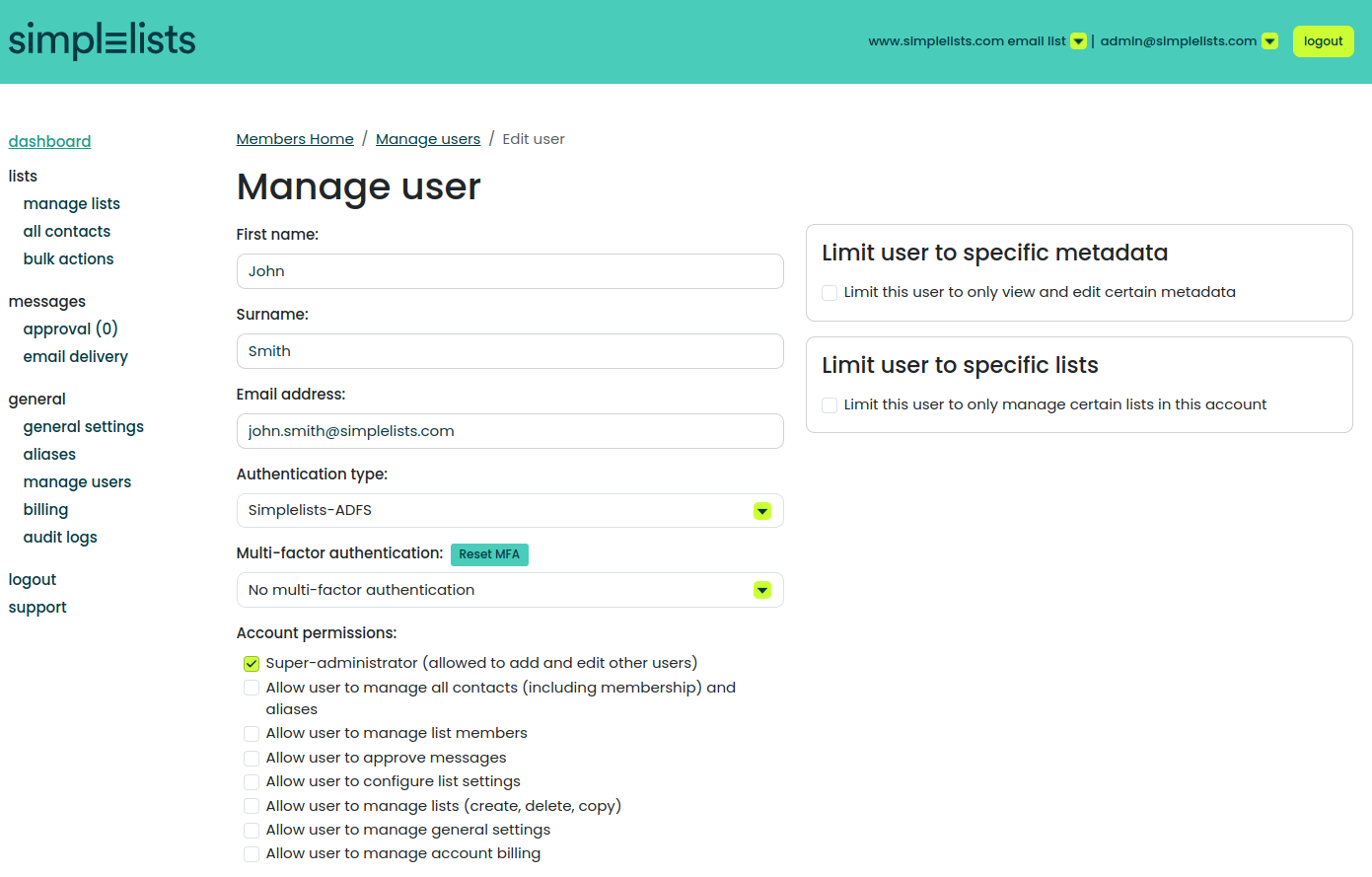
The SAML provider is now configured, but existing users still authenticate using their original method (typically Simplelists native authentication). This final step switches individual users to authenticate via your new SAML provider. You’ll need to do this for each user who should use SSO.The authentication method is by user. You will need to set the authentication method for each user that you want to use SAML.
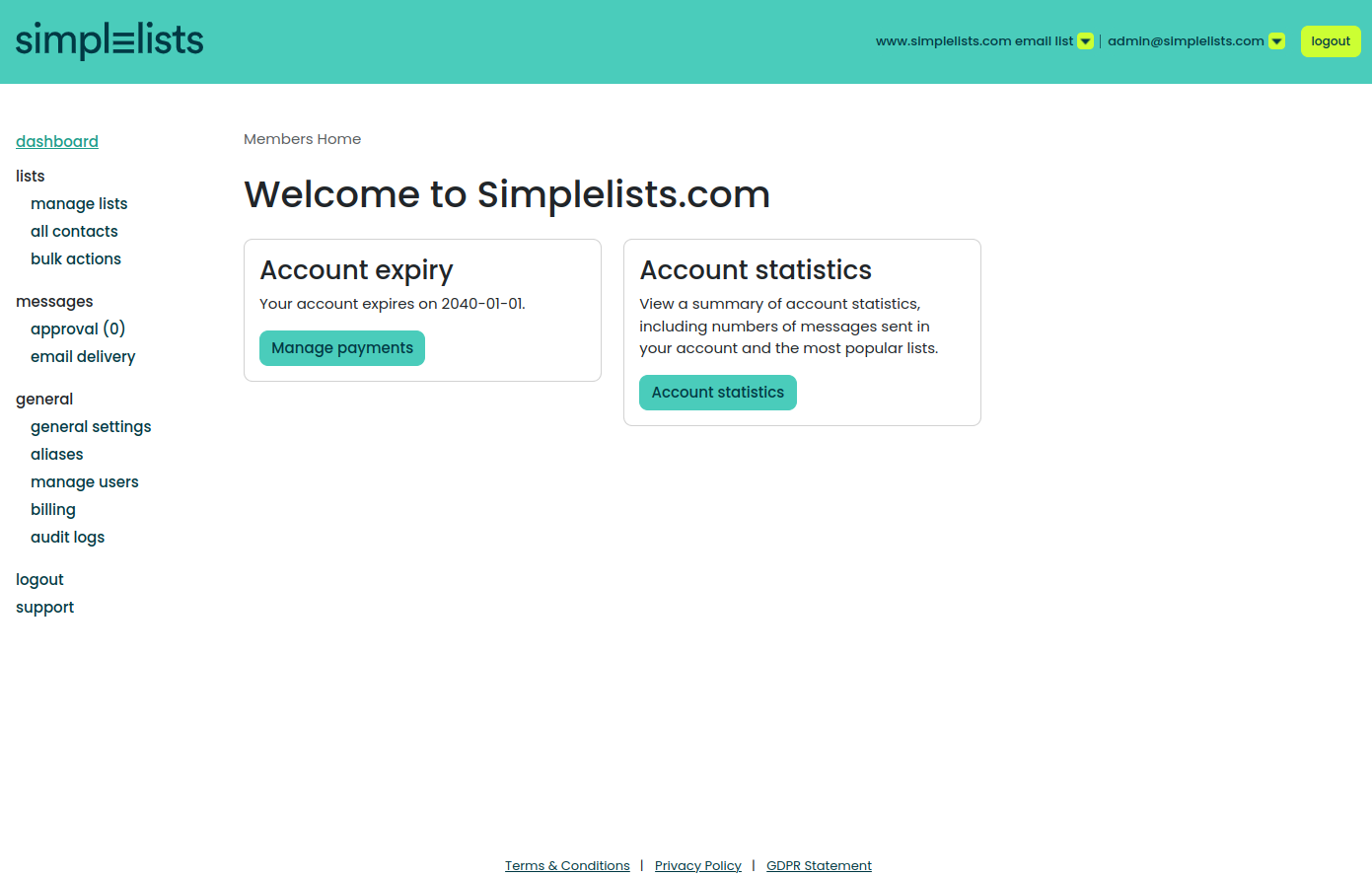
- Click manage users from the left hand menu
-
Select the User(s) that you want to modify
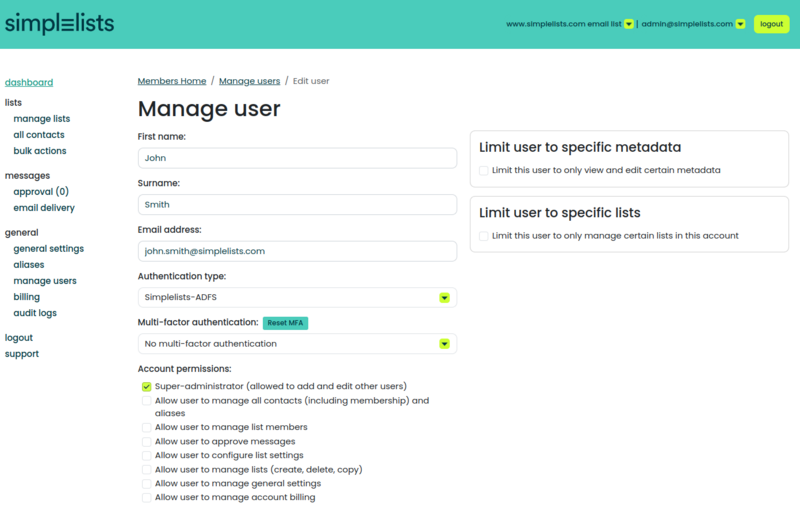
- From the Authentication type menu select your SAML Provider that you set up earlier
- Click Update to save the user
Why this matters
Until you switch a user’s authentication type, they’ll continue using their existing login method. This per-user approach gives you control over the rollout – you can migrate users gradually, test with a pilot group first, or maintain native authentication for specific accounts (such as a break-glass administrator account that doesn’t depend on your IdP).Common issues at this step
- User can’t log in after switching: Verify the user exists in your IdP and that the email address matches exactly between Simplelists and the IdP. SAML authentication typically matches users by email address.
- Locked out after switching your own account: Before switching the administrator account to SAML, verify SSO works with a test user. Consider keeping at least one administrator account on native authentication as a backup (make sure to configure MFA on any such account).
- Some users work, others don’t: Check that all affected users are assigned to the SAML application in your IdP. In Azure AD and Okta, users must be explicitly assigned to an enterprise application before they can authenticate through it.
Frequently Asked Questions
Why does login redirect back to the IdP login page repeatedly?
The Reply URL (Assertion Consumer Service URL) in your IdP doesn’t match the one configured in Simplelists. Both systems must agree on exactly where SAML responses should be sent. Check for trailing slashes, http vs https, and URL path mismatches.
What causes “SAML Response signature verification failed” errors?
The certificate Simplelists has on file for your IdP doesn’t match the certificate your IdP is currently using to sign assertions. IdP certificates can expire or be rotated. Re-download your IdP’s metadata and re-upload it to Simplelists.
Why does a user log in successfully but have no permissions?
If using automatic user creation with groups, the group names in your IdP’s SAML assertion don’t match the SSO Group Names configured in Simplelists. If not using automatic creation, the user account exists but hasn’t been granted permissions – check their account settings in Simplelists.
Why is a user account deleted after logging in?
You have the group attribute configured but the IdP isn’t sending matching groups for this user. When group-based provisioning is enabled and no matching groups are found, Simplelists removes the user. Either ensure the user belongs to a mapped group in your IdP, or remove the group attribute configuration if you don’t need group-based provisioning.
Why does IdP-initiated login fail but SP-initiated login work?
The RelayState value configured in your IdP doesn’t match the value Simplelists expects. Check the RelayState value shown in your Simplelists authentication provider settings and ensure your IdP is configured to send exactly that value.
Why aren’t names or other attributes appearing for users?
The attribute claim URIs configured in Simplelists don’t match the ones your IdP is sending. These are case-sensitive and must match exactly. Inspect an actual SAML assertion from your IdP (most IdPs have tools for this) to find the exact attribute names being sent.
Related Resources
Explore more Simplelists guides and features:
- Simplelists Products and Pricing – Compare plans including Enterprise features with SSO
- Email List Management: A Complete Guide – Learn best practices for managing your mailing lists
- How to Create a Group Email – Step-by-step guide to setting up group email
- What is a Listserv? – Understanding mailing list fundamentals
- GDPR Statement – How Simplelists handles data protection and privacy
References
- OASIS Open. Security Assertion Markup Language (SAML) v2.0 OASIS Standard. https://www.oasis-open.org/standard/saml/
- OASIS Security Services Technical Committee. SAML V2.0 Technical Overview. https://docs.oasis-open.org/security/saml/Post2.0/sstc-saml-tech-overview-2.0.html
- Microsoft Learn. Enable SAML single sign-on for an enterprise application. https://learn.microsoft.com/en-us/entra/identity/enterprise-apps/add-application-portal-setup-sso
- Wikipedia. SAML 2.0. https://en.wikipedia.org/wiki/SAML_2.0