
To let others manage your Simplelists account without sharing passwords, add them as delegated administrators through the “Manage admins” menu. You can assign specific permissions — such as approving messages and managing members — while restricting access to account settings. Simplelists’ granular permission controls keep your account secure while distributing the workload effectively across your team or organization.
✓ Quick Start: Add an Administrator in 5 Steps
- Log in to your Simplelists account area
- Click "Manage admins" in the main menu
- Select "Add new administrator"
- Enter their name and email address (confirmation is sent automatically)
- Set permissions by ticking the relevant boxes, then click "Create"
That’s it! Your new administrator will appear on the "Manage admins" page and receive login instructions by email. Need help? Visit our support page →
In this guide
Whether you’re running a sports club, coordinating a charity, or managing communications for a growing business, there comes a point when one person simply cannot handle all the administrative tasks alone. The traditional solution — sharing your login credentials — creates serious security risks that many organizations don’t fully appreciate until something goes wrong.
Research shows that 75% of people globally don’t follow accepted password best practices, and password reuse remains endemic even among IT professionals. When you share a password, you’re trusting that every recipient will handle it securely, never reuse it elsewhere, and remember to forget it when their access should end. That’s a lot to ask — and Simplelists offers a better approach: delegated administration that maintains full accountability without compromising your account security.
This guide covers everything you need to know about adding administrators to your Simplelists account, from understanding permission levels to security best practices. For a broader understanding of managing your lists effectively, see our complete guide to email list management.
Why Delegated Administration Matters for Your Organization
Password sharing remains alarmingly common despite its well-documented risks. According to recent research, nearly half (46%) of people had a password stolen in 2024, while security analysts found that only 6% of passwords analysed were unique — meaning 94% were reused across multiple accounts. When credentials are shared, these risks multiply exponentially.
For volunteer-run organizations like clubs and charities, the problem extends beyond security. When a membership secretary moves on, what happens to the shared login? Who else has access? Is there any record of who made which changes? These questions create operational headaches that compound over time.
Consider the typical scenario: a long-serving committee member has been managing the club’s email list for years. When they step down, the new volunteer receives the login details — often verbally or via email. Now two people know the password. Fast forward through several committee changes, and nobody is quite sure who has access anymore. Simplelists eliminates these concerns entirely by allowing you to add individual administrators with their own access credentials.
The business case for role-based access: Research from NIST (National Institute of Standards and Technology) found that structured access control policies deliver significant economic benefits, with industry savings estimated at over $1 billion. Organizations report up to 25% improvement in employee focus time when proper access controls are implemented.
Simplelists’ approach to delegated administration also supports GDPR compliance. By assigning individual accounts, you create a clear audit trail of who accessed what and when — essential for demonstrating accountability under data protection regulations. Learn more about our GDPR-compliant approach to data access.
Understanding Administrator Permission Levels in Simplelists
Simplelists provides granular control over what each administrator can access and modify. Rather than an all-or-nothing approach, you can tailor permissions to match each person’s role and responsibilities. This means your membership secretary can approve messages and manage subscribers without accessing billing information or account settings.
Available Permission Types
| Permission | What It Allows |
|---|---|
| Super-administrator | Manage other administrators and assign permissions |
| Manage all contacts | Access the “all contacts” menu to see all accounts contacts (Multiple List accounts only) |
| Manage aliases | Add, edit and delete aliases (Multiple List accounts only) |
| Manage list members | Add and remove members of individual lists |
| Approve messages | Approve or reject emails held for moderation |
| Configure list settings | Edit settings of lists |
| Manage lists | Create and delete lists, and copy list members (Multiple List accounts only) |
| Manage general settings | Access the general account settings menu |
| View, send and delete list emails | View historical list emails, delete archived emails, send messages (via the API) |
| View audit logs | Access an account’s audit logs (Enterprise accounts only) |
| Manage account billing | View subscription status, view invoices and make payments |
For example, a club treasurer might only need access to view billing information, while the communications officer requires message approval and posting permissions. Simplelists lets you configure these combinations precisely. This approach aligns with best practices for configuring posting permissions on your lists.
View our Simplelists plans to see which options include multiple administrators and advanced permission controls.
Limiting to specific lists or metadata
For Multiple List accounts, it is also possible to restrict an administrator to only specific lists in the account (by default they will have access to all lists). You can do this by ticking the “Limit administrator to specific lists” option and then selecting the required lists.
In the same vein, you can also restrict an administrator to only be able to see certain metadata about contacts. This is useful if some of the metadata is sensitive information. You can do this by ticking the “Limit administrator to specific metadata” option and then selecting the required items of metadata. By default, an administrator will see all metadata.
Step-by-Step: Adding a Delegated Administrator
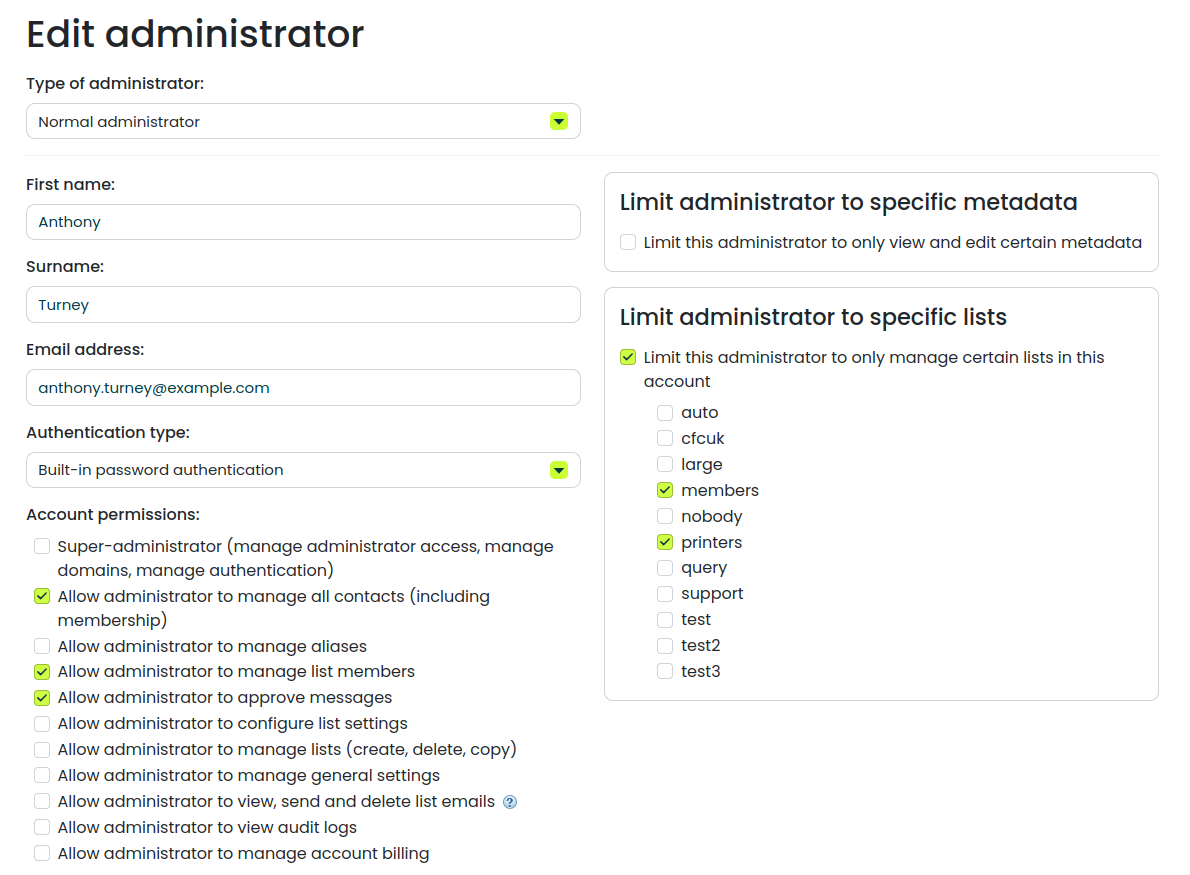
To add a new administrator, simply log in to your Simplelists account area and click on “Manage admins” in the main menu.
On the Manage admins screen, select “Add new administrator” and enter a name and email address. It is important to use the correct email address as confirmation will automatically be sent to this address.
You can edit the administrator permissions at this stage by ticking the relevant boxes. You can choose from one or more of the following permissions as shown in the table above.
Then, click the "Create" button to complete the process. You will see the new administrator on the “Manage admins” page. Note: if the person you added is already an administrator of a different Simplelists account, then they will need to accept the invitation to also join your account (they will receive an email inviting them).
Adding API Users for Technical Integrations
Simplelists also supports API users for organizations that need to integrate their email list management with other systems. API users differ from regular administrators — they’re designed for automated processes rather than human access.
When to Use API Users
- Automatically syncing membership data from your CRM or database
- Building custom subscription forms that connect directly to Simplelists
- Creating automated workflows that add or remove members based on triggers
- Integrating with membership management software
How to Add an API User
To add an API user, return to the “Manage admins” page. This time, after clicking then “Add new administrator” button, select “Type of administrator” and choose API user and the version of the API that you are using (we recommend version 2 for new integrations). Click the "Create" button. The API user will then appear in the list of administrators on the "Manage admins" screen.
Keep your API credentials secure — treat them with the same care as any password. API integration opens up powerful automation possibilities. For instance, a membership organization might connect their payment processor to Simplelists, automatically adding new members when they pay their subscription and removing them when memberships lapse. A charity could sync their donor database, ensuring supporters always receive the communications they’ve opted into. These integrations save hours of manual data entry while reducing the risk of human error.
That’s all there is to adding new administrators to your account. Simple!
For additional support, visit the support page on our website.
Managing Your Administrator Team
Once you’ve added administrators, Simplelists provides straightforward tools to manage them over time. You can view all current administrators, modify their permissions, or remove access entirely — all from the "Manage admins" area.
Viewing and Editing Administrators
The administrator overview shows each person’s name, email address, and current permission level. Click on any administrator to edit their permissions — perhaps expanding access as their role grows, or restricting it if responsibilities change. You can also see when each administrator last accessed the account, helping you identify dormant accounts that should be removed.
Removing Administrators
When someone leaves your organization, removing their administrator access takes just two clicks. Navigate to “Manage admins”, find the person’s entry, and select “Delete”. Their access is revoked immediately — no password changes required, no uncertainty about lingering access. The system maintains a record that the administrator existed, supporting your audit trail requirements.
Best Practice: Regular Permission Audits
Schedule a quarterly review of your administrator list. Check that everyone who has access still needs it, and that their permission levels match their current roles. This simple habit prevents "permission creep" — the gradual accumulation of access rights that occurs as people take on temporary tasks and never have the extra permissions removed.
This clean removal process is particularly valuable for volunteer-run organizations with frequent turnover. For more on keeping your lists well-managed, see our guide on how to moderate messages effectively.
Security Best Practices for Multi-Admin Accounts
Simplelists’ delegated administration dramatically improves security compared to password sharing, but following best practices ensures you get maximum protection.
- Never share your primary account password. Use delegated administration instead — it’s what it’s designed for.
- Create individual accounts for each administrator. This maintains accountability and creates a clear audit trail of who made what changes.
- Apply the principle of least privilege. Only grant the permissions each administrator actually needs — nothing more.
- Review permissions quarterly. People’s roles change, and permissions should change with them.
- Remove departed staff immediately. Don’t wait until your next committee meeting — revoke access the day someone leaves.
- Document who has access. Keep a simple record of current administrators and their permission levels.
With Simplelists, every administrator action can be tracked and attributed to a specific person. This audit capability supports both security investigations and GDPR compliance requirements. If a question ever arises about who changed a setting or removed a member, you have a clear record to consult.
Frequently Asked Questions
What permissions can I give a delegated administrator?
Can delegated admins change my account settings or billing?
How do I remove an administrator if they leave my organization?
Is there a limit to how many administrators I can add?
Do delegated admins need their own Simplelists account?
What’s the difference between an administrator and an API user?
Get Started with Delegated Administration
Delegated administration transforms how organizations manage their email lists. Instead of sharing passwords and hoping for the best, Simplelists provides secure, accountable access that scales with your needs. Whether you’re a small club with two committee members or a large charity with multiple departments, the same simple process applies.
Ready to stop sharing passwords and start working more securely? Log in to your Simplelists account and add your first delegated administrator today. If you’re evaluating email list solutions, explore our pricing plans or see how Simplelists compares to alternatives in our comparison with Google Groups.
Start your free trial and add unlimited administrators
References
- Huntress. (2025). 36 Must-Know Password Statistics for 2025. Retrieved February 2026.
- Spacelift. (2026). 70+ Password Statistics for 2026. Retrieved February 2026.
- NIST Computer Security Resource Center. (2025). Role-Based Access Control (RBAC). National Institute of Standards and Technology.
- Secureframe. (2025). 125+ Password Statistics to Inspire Better Security Practices. Retrieved February 2026.
- DemandSage. (2026). 35 Password Statistics 2026 - Data Breaches & Industry Report. Retrieved February 2026.