
What you’re setting up
This guide walks through creating a trust relationship between Microsoft Azure (Entra ID) and Simplelists. When complete, your users will authenticate against Azure and be granted access to Simplelists without needing separate credentials.
Create an Azure Enterprise Application for Simplelists
Context
You’re creating a dedicated application entry in Azure that represents Simplelists. This is where Azure stores all the SAML settings, certificates, and user assignments for the integration.
- Login to your Microsoft Azure Tenant https://portal.azure.com
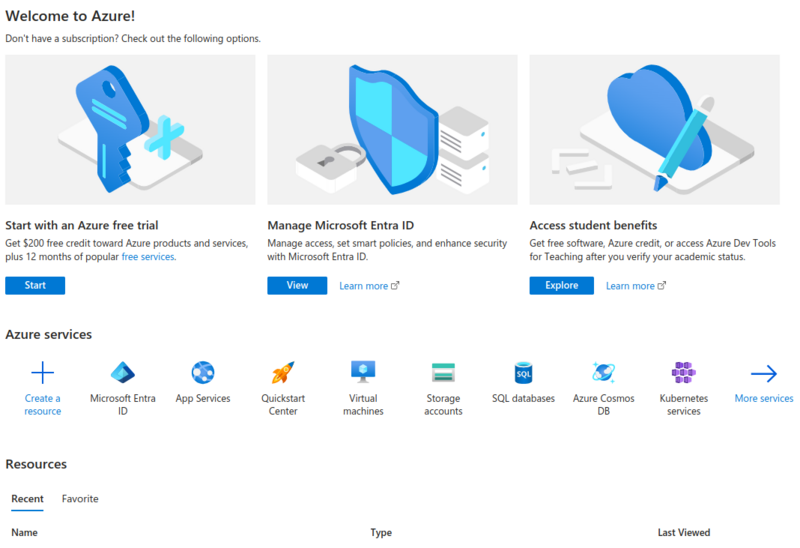
- Click View on Manage Microsoft Entra ID or click Microsoft Entra ID
Why it matters
The tenant you log into determines which user directory will be used for authentication. If your organization has multiple Azure tenants, logging into the wrong one means users from that tenant won’t be able to authenticate to Simplelists.
Common issues
- "I can’t see Entra ID in the portal" — You may not have sufficient permissions. You need at least the Application Administrator or Cloud Application Administrator role to create enterprise applications.
- "I’m not sure which tenant I’m in" — Check the tenant name displayed in the top-right corner of the Azure portal, or look at the directory name shown after logging in.
Manage Azure Active Directory
Context
You’re navigating to the Enterprise Applications section where all third-party integrations are managed. This is separate from App Registrations, which are used for applications you develop yourself.
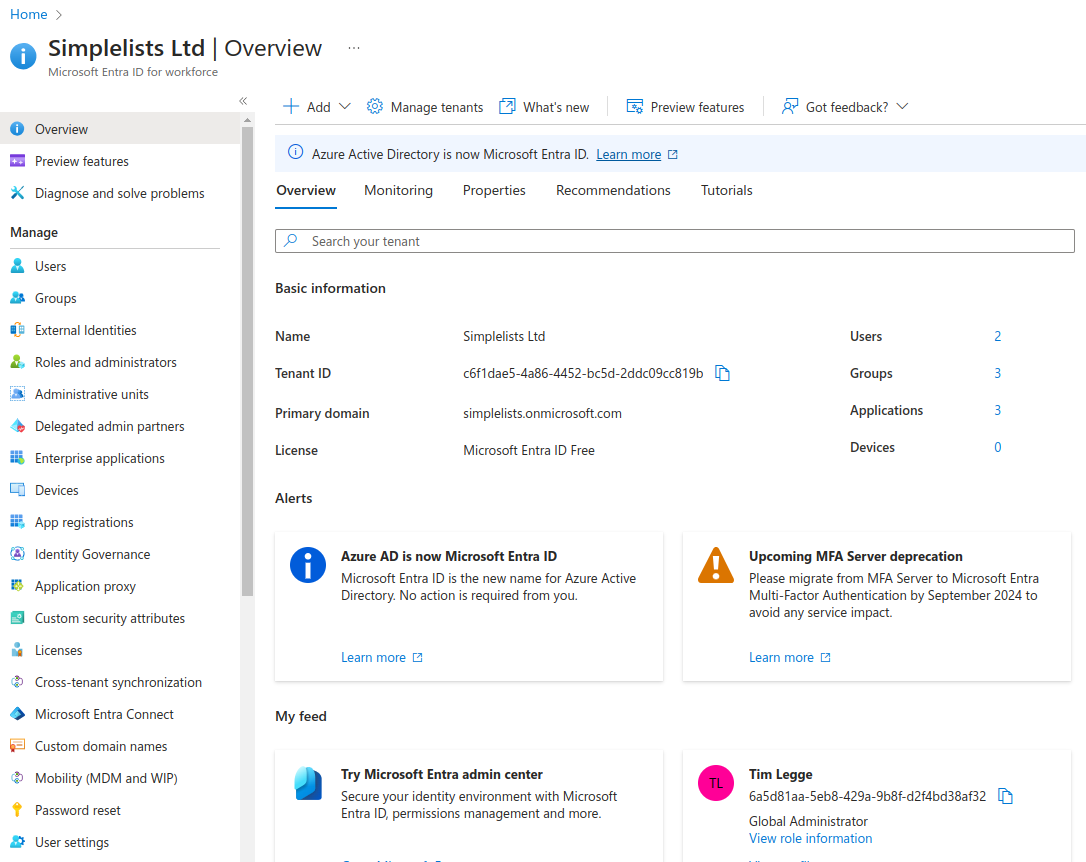
- Click Enterprise applications from the left hand menu
Create a new Enterprise Application
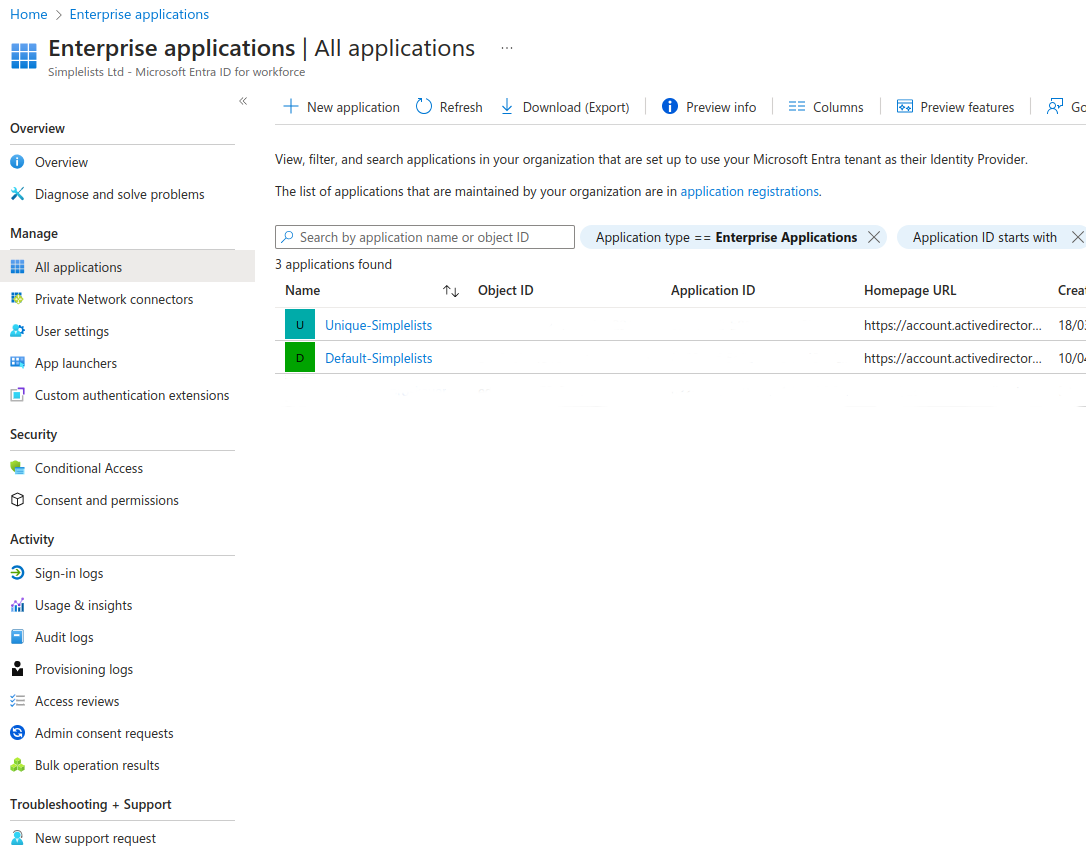
- Click New application
Create your own application
Context
Azure’s gallery contains pre-configured templates for many popular SaaS applications. Since Simplelists isn’t in the gallery, you’ll create a custom (non-gallery) application and configure SAML manually.
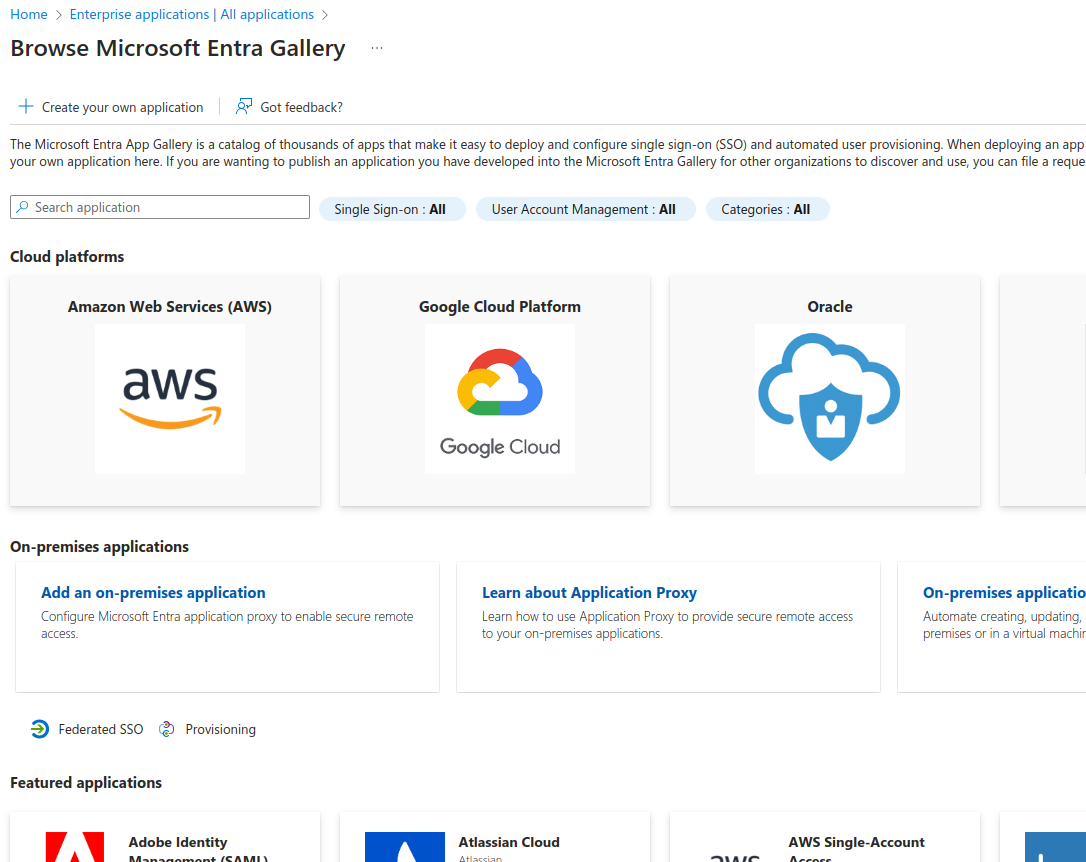
- Click Create your own application
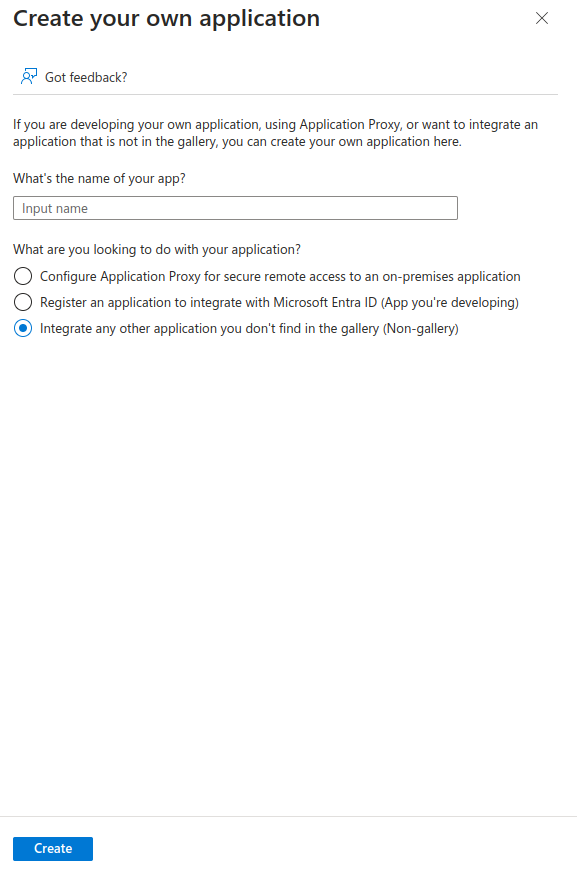
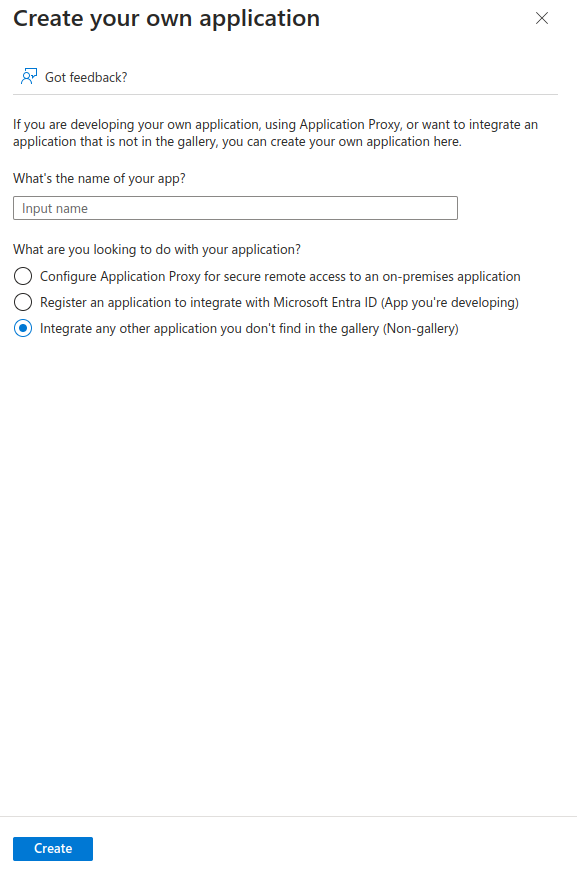
- Enter Application Details
- Enter the name of your app (Simplelists or other unique name)
- Select Integrate any other application you don’t find in the gallery (Non-gallery)
- Click Create
Why it matters
The application name you choose here will appear to users in their Azure "My Apps" portal and in any consent prompts. Choose something recognizable—typically "Simplelists" or "Simplelists - [Your Organization Name]" if you have multiple integrations.
Setup single sign on
Context
With the application container created, you now need to configure how authentication actually works. This is where you tell Azure to use SAML rather than other protocols like OpenID Connect.
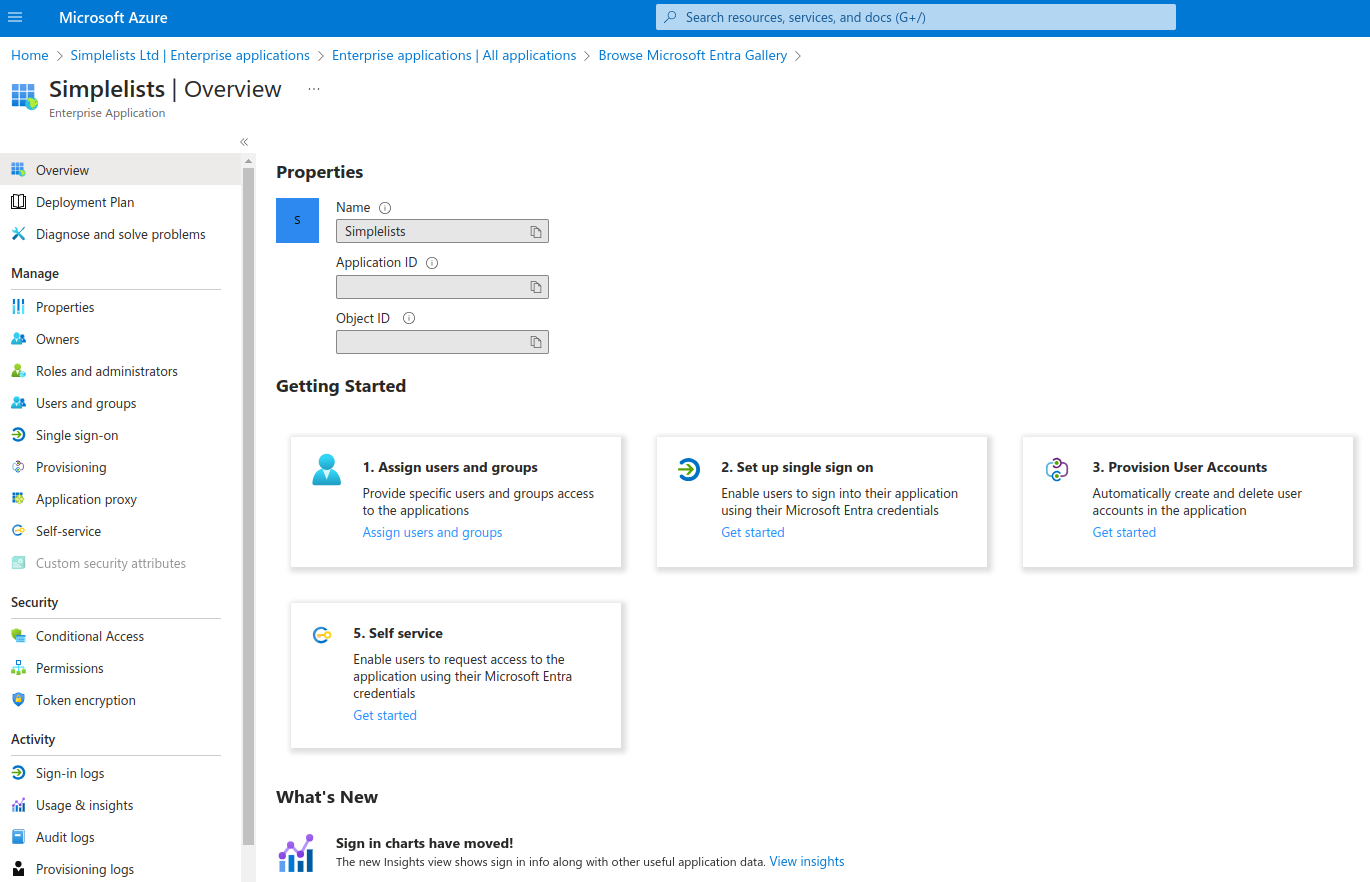
- Click Get started under Set-up single sign on
Select a single sign-on method
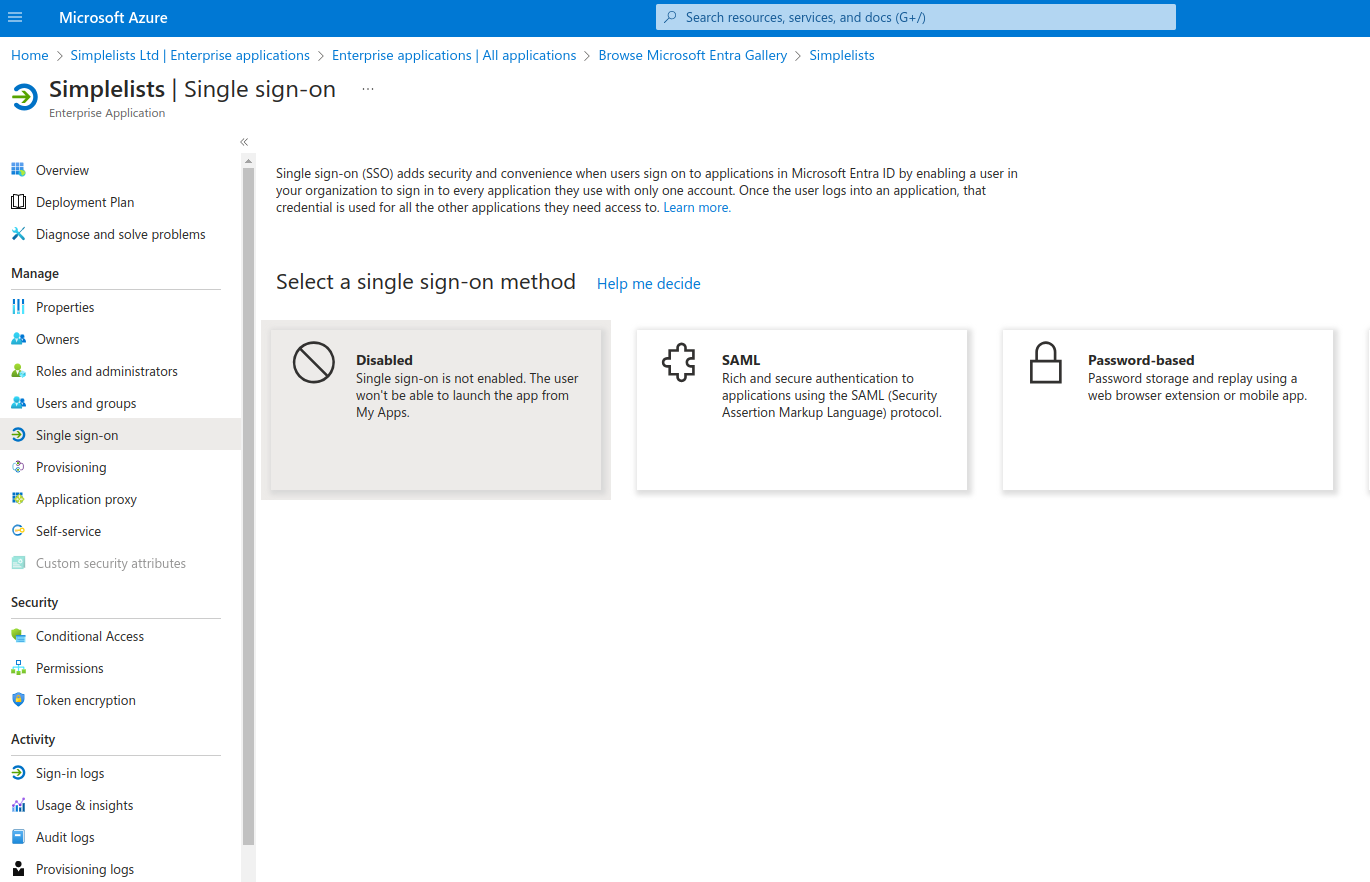
- Click SAML
Why it matters
Simplelists uses SAML 2.0 for single sign-on. Selecting a different method (like OpenID Connect or password-based) will not work with Simplelists.
Set up Single Sign-On with SAML
Context
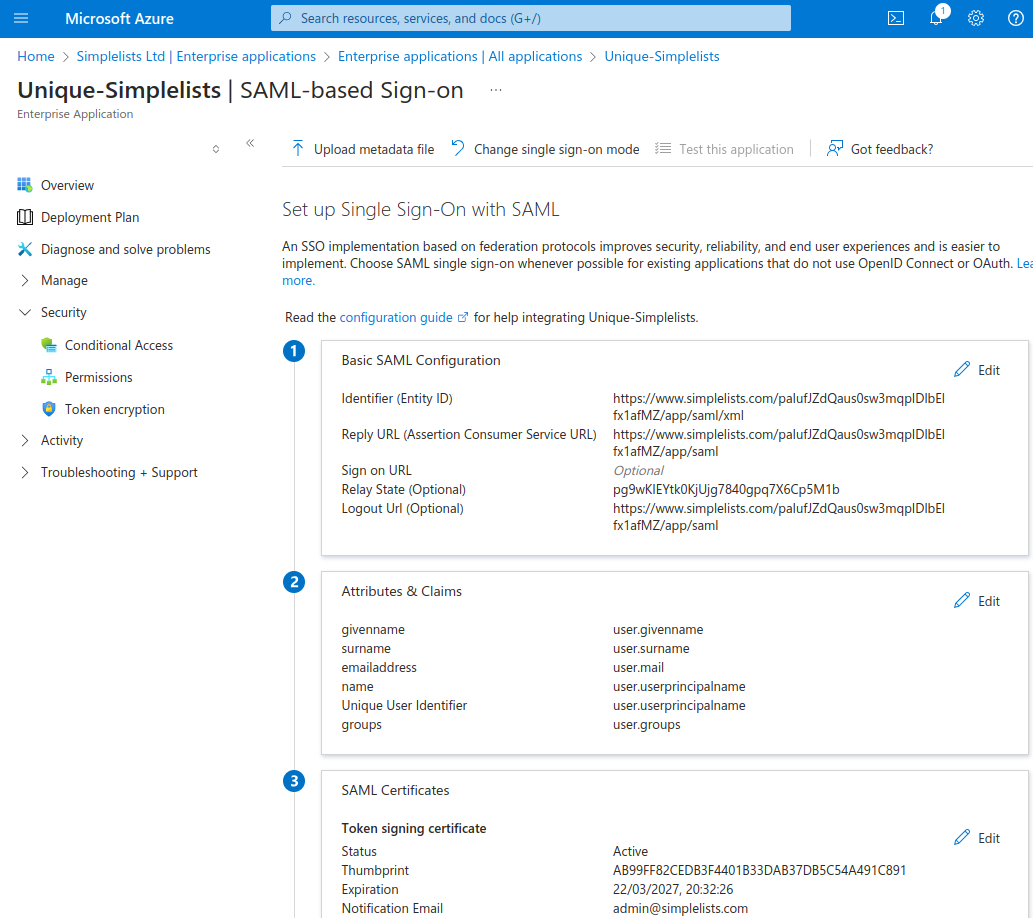
This is where Azure and Simplelists exchange trust information. You’ll upload Simplelists’ metadata file to Azure, which automatically populates most of the required SAML settings. The metadata file contains Simplelists’ entity ID, assertion consumer service URLs, and signing requirements.
The metadata file referenced below is the saml.xml file that you can download from the Simplelists Authentication provider that is created using Configuring a SAML2 Authentication Provider
The metadata file will include most of the settings required. The RelayState value is also located on the Authentication Provider created as per Configuring a SAML2 Authentication Provider
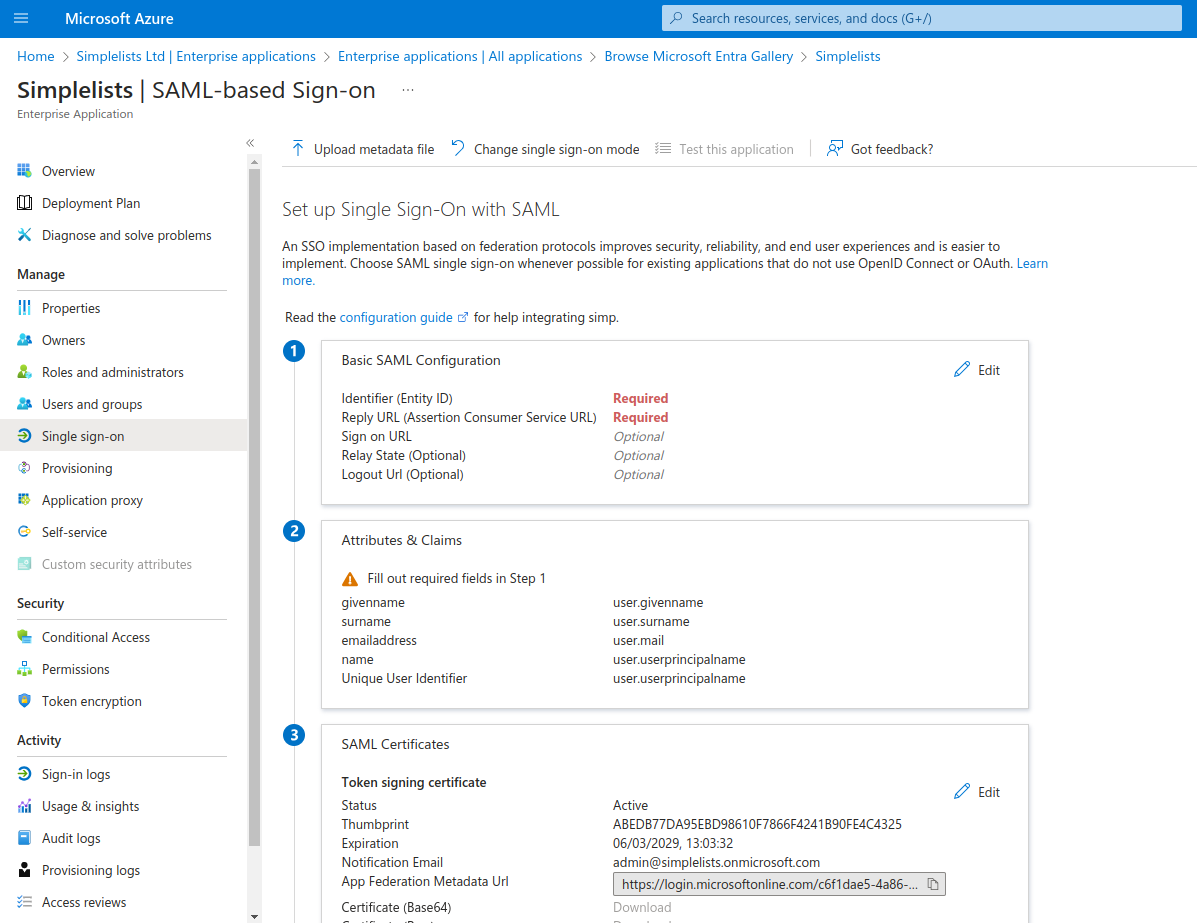
- Click Upload metadata file
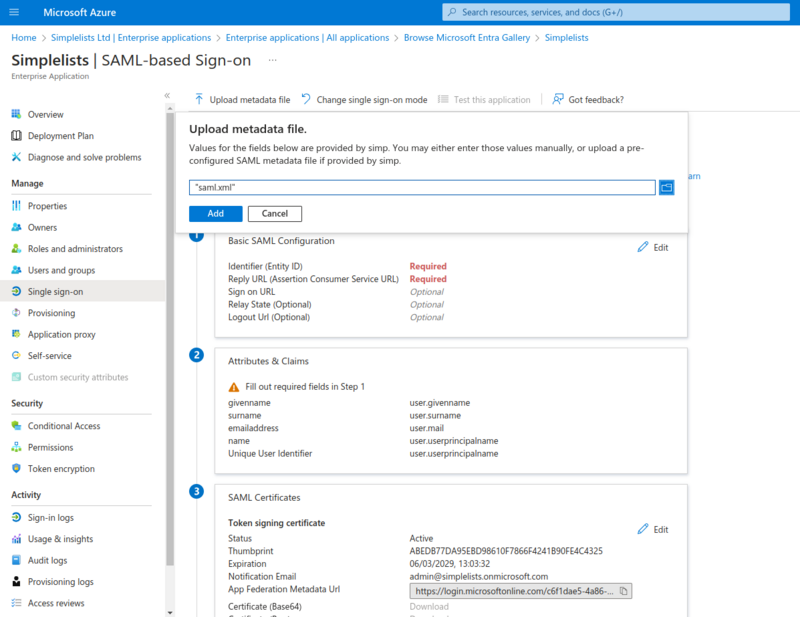
- Click Add
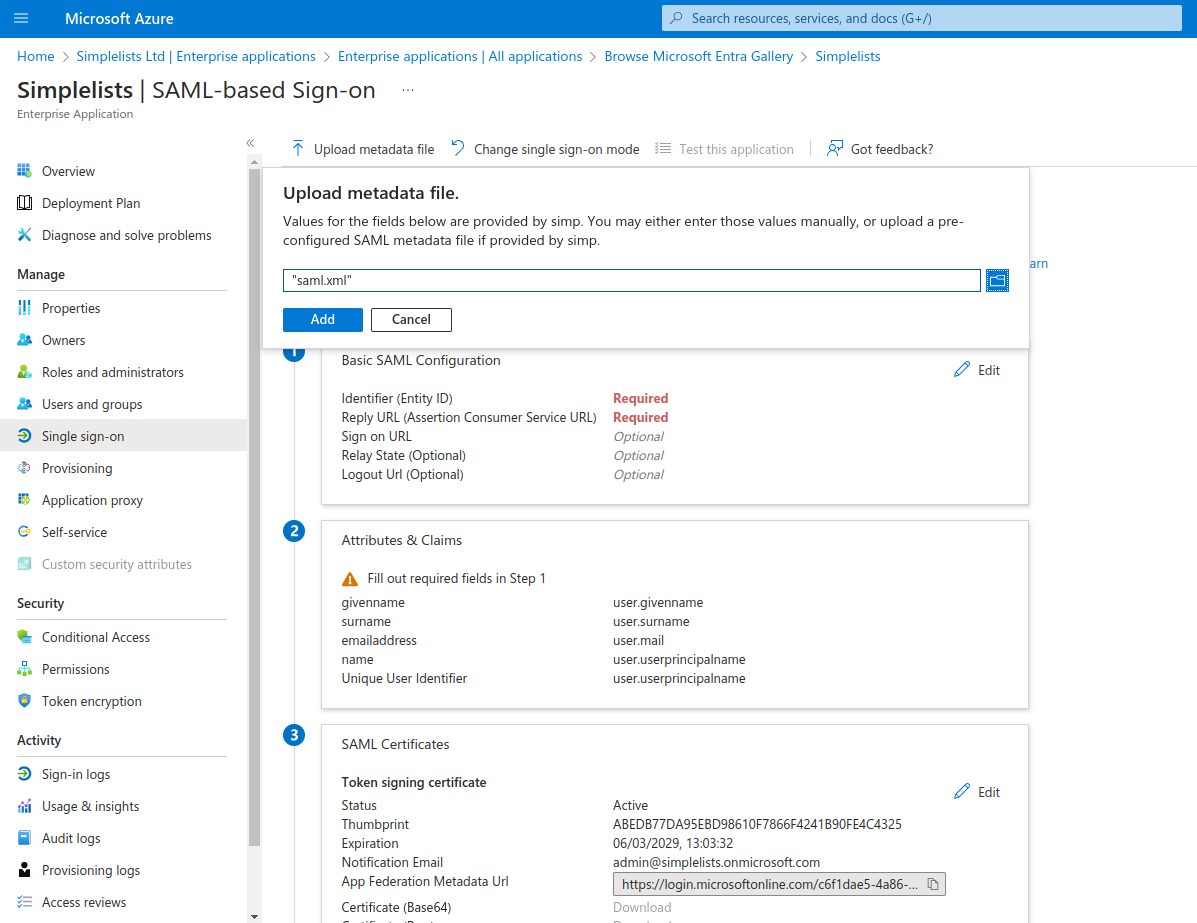
Why it matters
The metadata file establishes the trust relationship. It tells Azure exactly where to send authentication responses (the Assertion Consumer Service URL) and how Simplelists identifies itself (the Entity ID). If these don’t match between Azure and Simplelists, authentication will fail with signature or destination errors.
Common issues
- "Upload failed" or "Invalid metadata" — Confirm you downloaded the
saml.xmlfile from Simplelists, not another XML file. The file must be valid XML with the correct SAML metadata schema. - "I don’t have a metadata file yet" — You need to create the Authentication Provider in Simplelists first. See Configuring a SAML2 Authentication Provider.
Verify Basic SAML Configuration that was uploaded
Context
After the metadata upload, you need to manually add the RelayState. This value tells Simplelists which authentication provider configuration to use when processing the login, which is essential when IdP-initiated login is used (i.e., when users click the Simplelists app from their Azure "My Apps" portal).
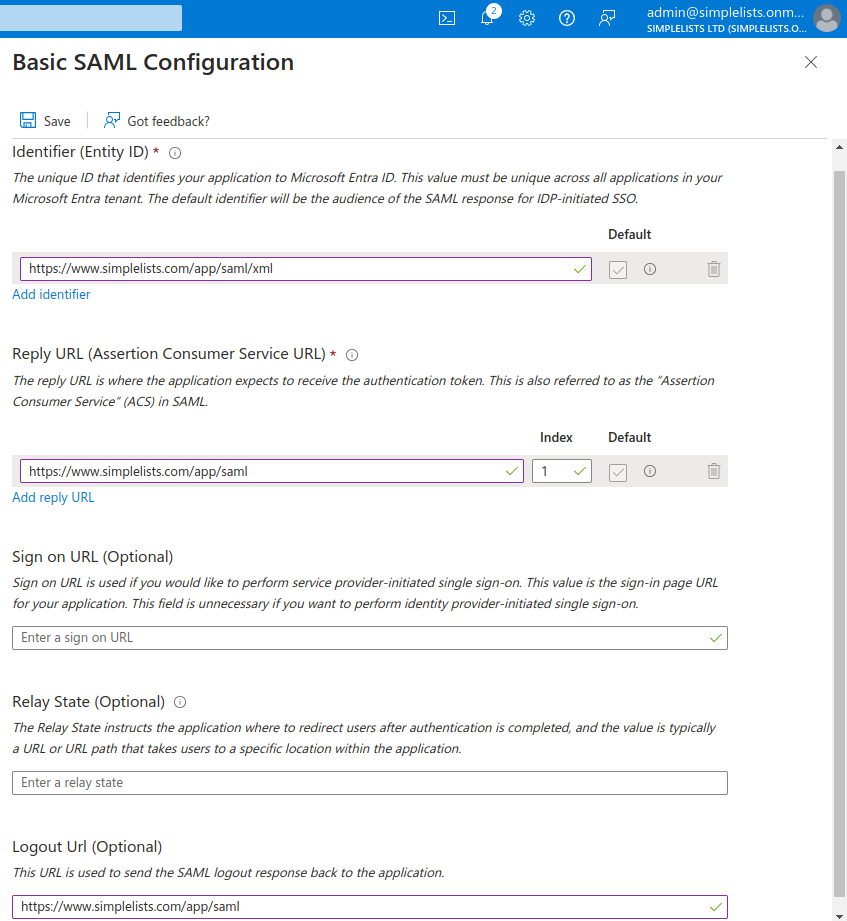
- Enter the RelayState from the Simplelists settings
- Click Save
The RelayState is a value that Azure will pass to Simplelists when authentication is initiated from the Azure applications page. It must match the value in Simplelists, and can be found on the Authentication Provider created in Simplelists.
Why it matters
Without the correct RelayState, IdP-initiated logins (starting from Azure) will fail because Simplelists won’t know which authentication provider configuration to use. SP-initiated logins (starting from the Simplelists login page) will still work, but users clicking the app in Azure will see an error.
Common issues
- "Login works from Simplelists but not from Azure’s My Apps" — The RelayState is missing or incorrect. Copy the exact value from your Simplelists Authentication Provider settings.
- "RelayState mismatch" error — The value in Azure doesn’t match the value in Simplelists exactly. Check for trailing spaces or incorrect characters.
Download the Metadata and Certificate for Simplelists
Context
Azure has now been configured to trust Simplelists. Now you need to complete the other half of the trust relationship: Simplelists must trust Azure. You’ll download Azure’s certificate and metadata file, then upload them to your Simplelists Authentication Provider.
Save each of these files to a location to upload the the Authentication Provider Settings of Simplelists.
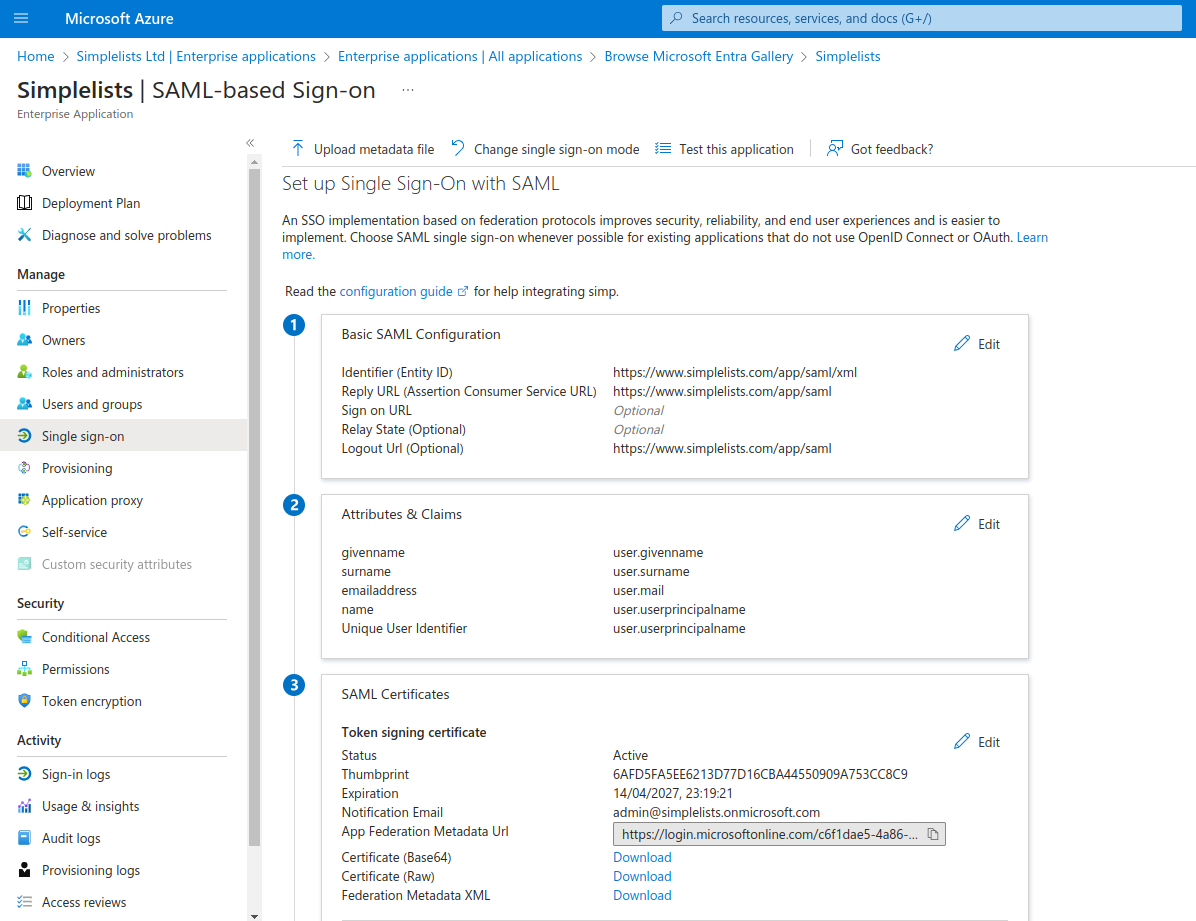
- Click Download to the right of Certificate (Base64)
- Click Download to the right of Federation Metadata XML
Why it matters
The certificate is used by Simplelists to verify that authentication responses genuinely came from Azure and weren’t tampered with in transit. The metadata file contains Azure’s signing certificate and endpoint URLs. Without these, Simplelists cannot validate Azure’s responses and will reject all login attempts.
Common issues
- "Signature validation failed" during login — The certificate in Simplelists doesn’t match the one Azure is using to sign responses. Re-download the certificate from Azure and re-upload it to Simplelists.
- "Certificate expired" errors — Azure certificates have an expiry date. When Azure rotates its signing certificate, you must download the new certificate and update it in Simplelists.
Azure - Enable User Login
Context
By default, Azure may not allow any users to access your new application. You need to explicitly assign users or groups who are permitted to log in via this SAML integration. This is Azure’s access control layer—separate from any permissions within Simplelists itself.
Depending on your Azure settings you may need to enable user log in for the Simplelists application in Azure.
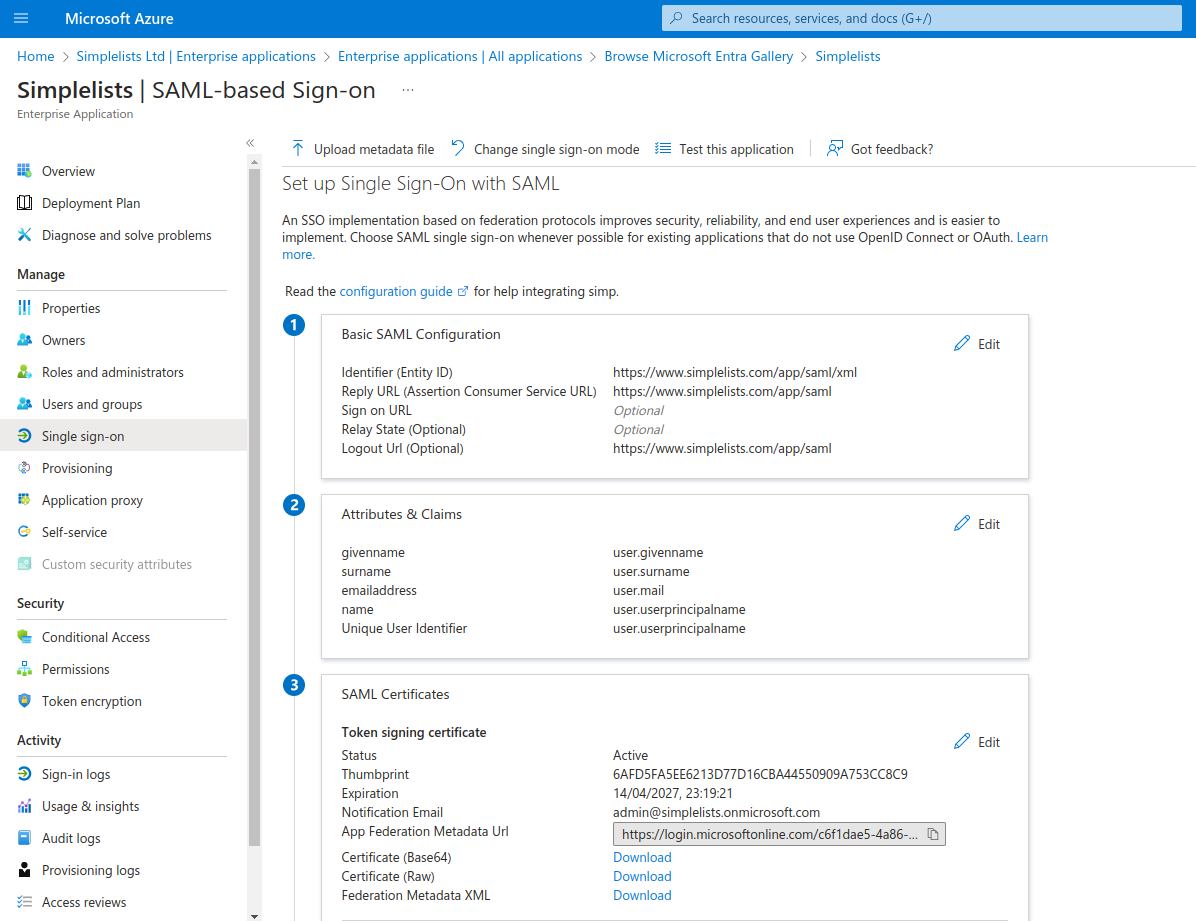
- Click Users and Groups
Users and Groups
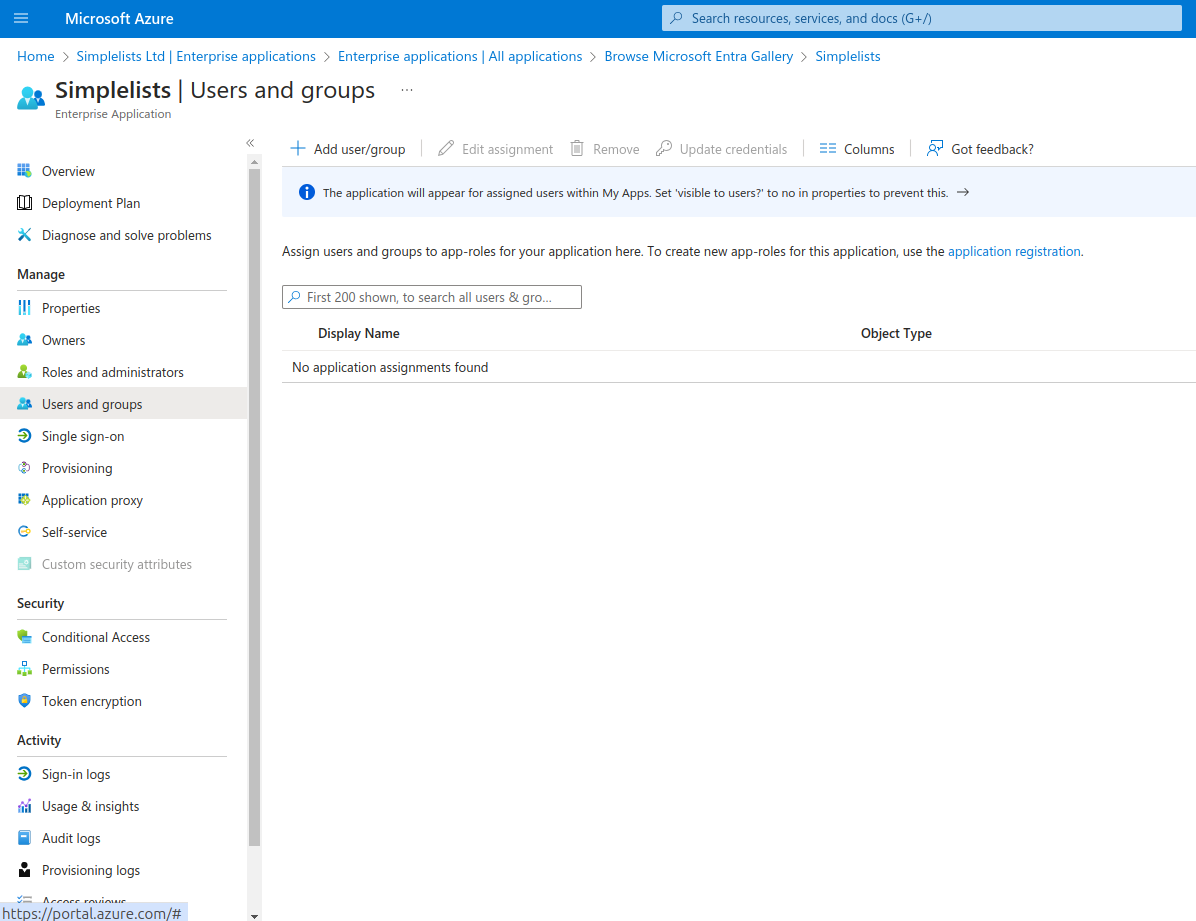
- Click Add user/group
Add Assignment
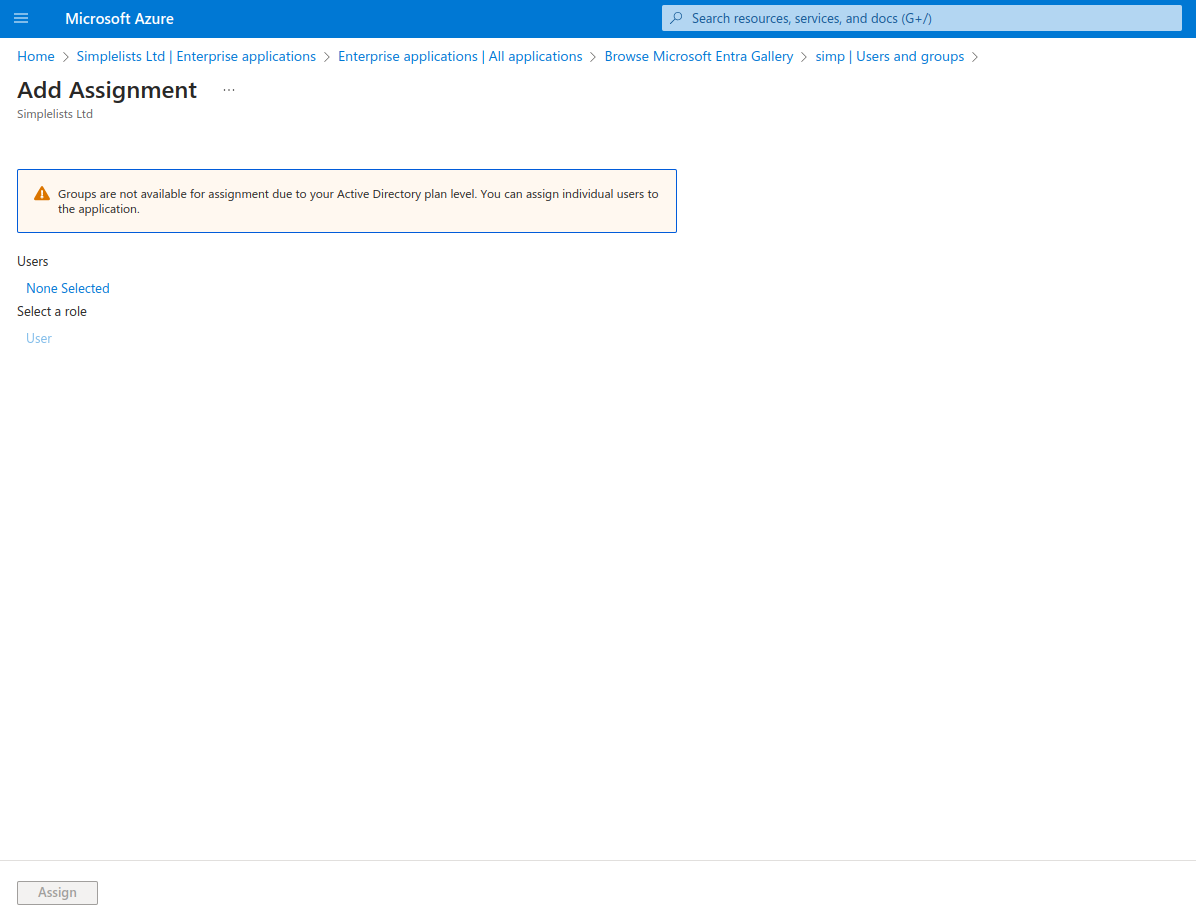
- Click None Selected under Users
Users
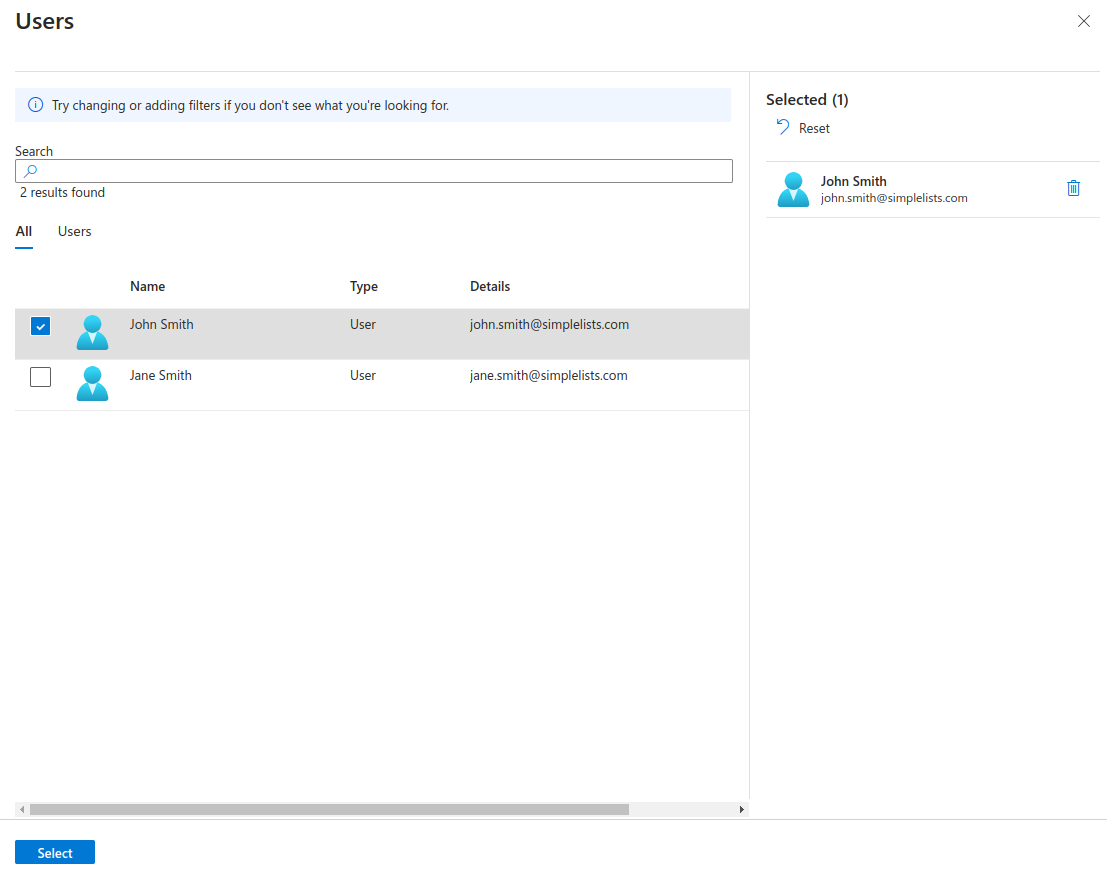
- Click on each user (or group) that you wish to add
- Click Select
Add Assignment
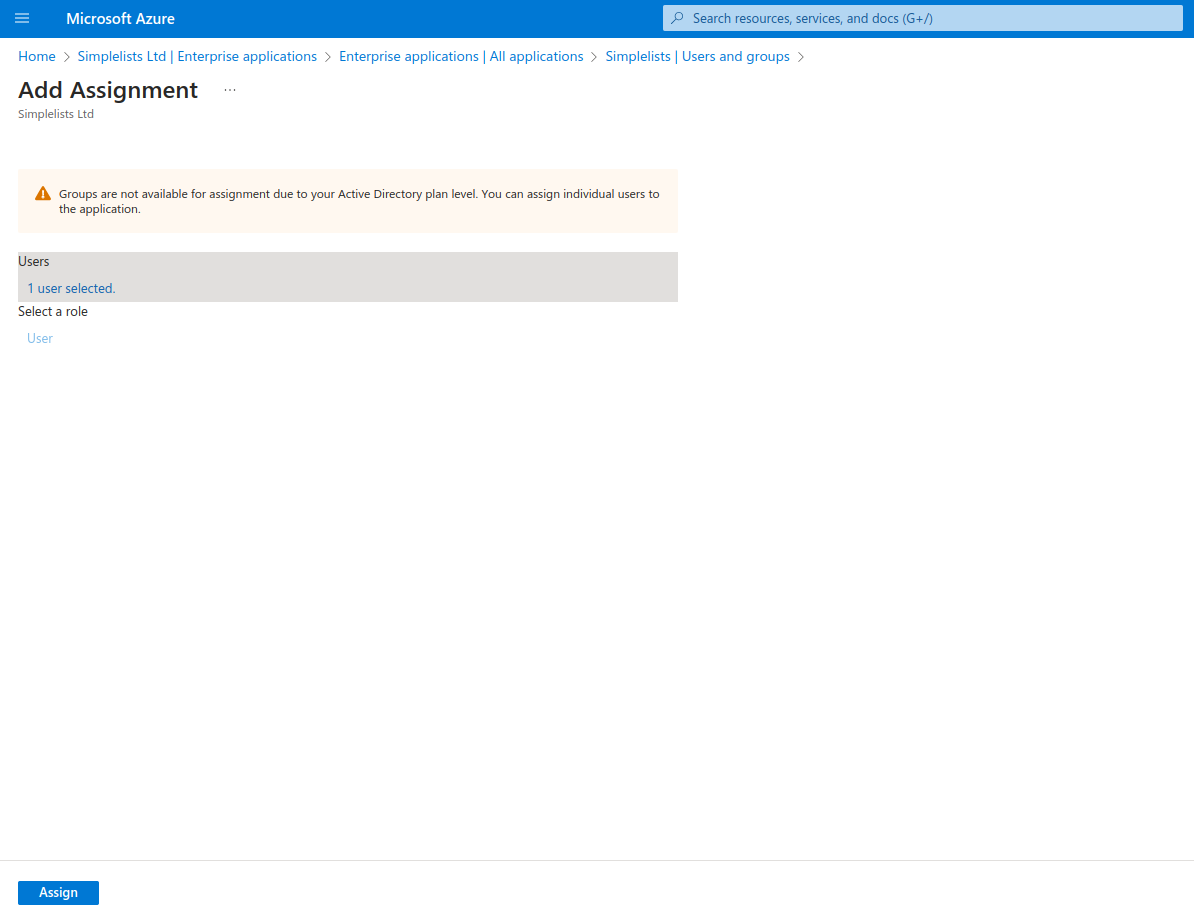
- Click Assign
Why it matters
Only users (or members of groups) assigned here will be able to authenticate. If a user isn’t assigned and attempts to log in, Azure will block the authentication attempt before it ever reaches Simplelists. This is your first line of access control.
Common issues
- "AADSTS50105: The signed in user is not assigned to a role" — The user attempting to log in hasn’t been assigned to the application. Add them to the Users and Groups list.
- "Some users can log in but others can’t" — Check that all required users are assigned, either directly or via a group. Group membership changes in Azure can take a few minutes to propagate.
Testing Login
Context
With both sides of the trust relationship configured and users assigned, you can now test the integration. This test uses SP-initiated login (starting from Simplelists), which is the most common flow for day-to-day use.
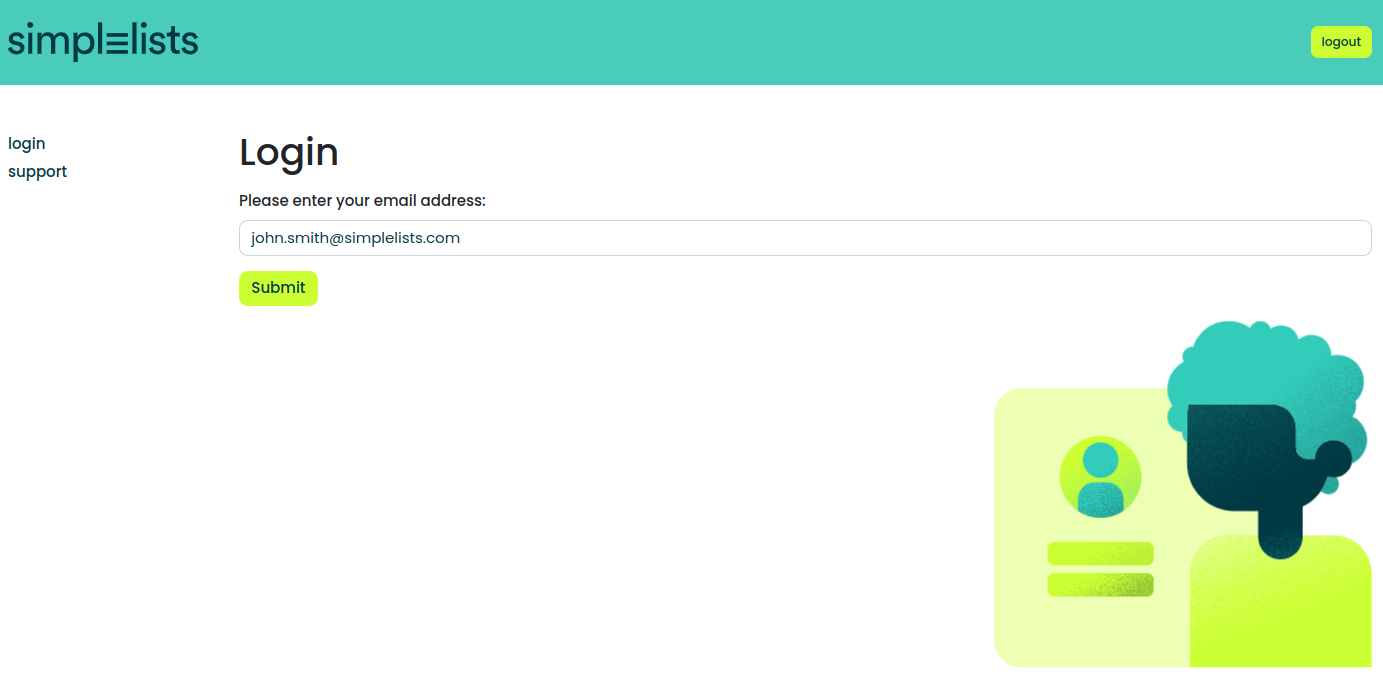
Access the Simplelists page and click Login
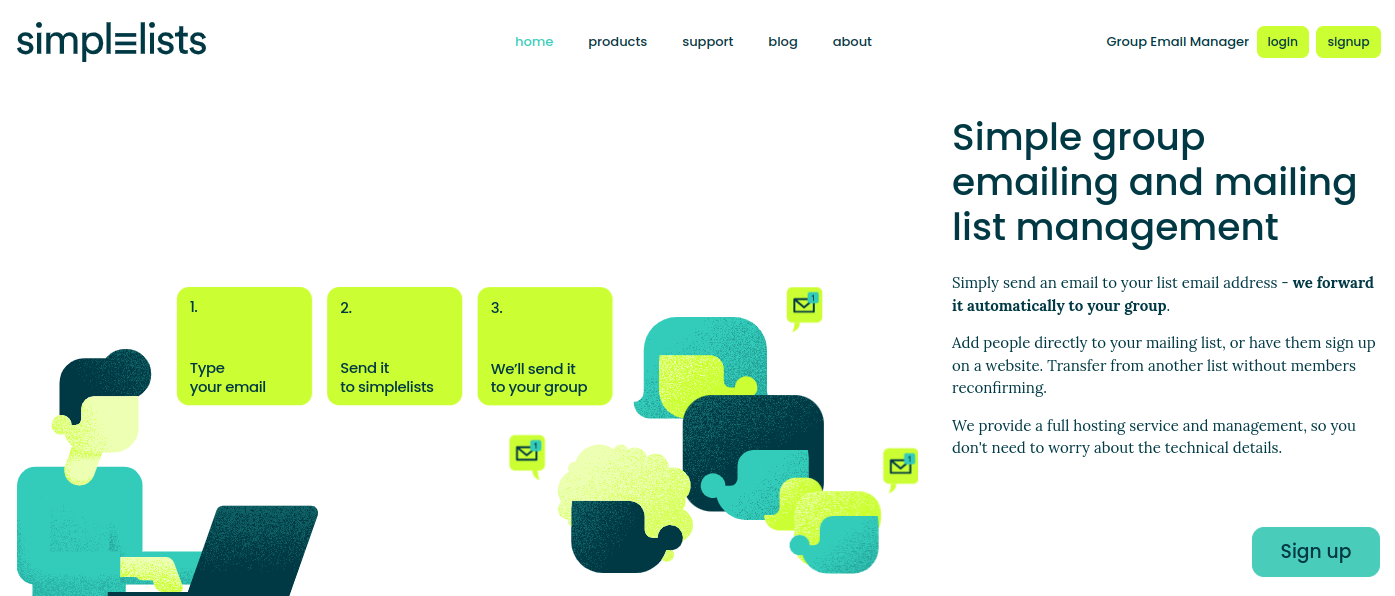
- Click login
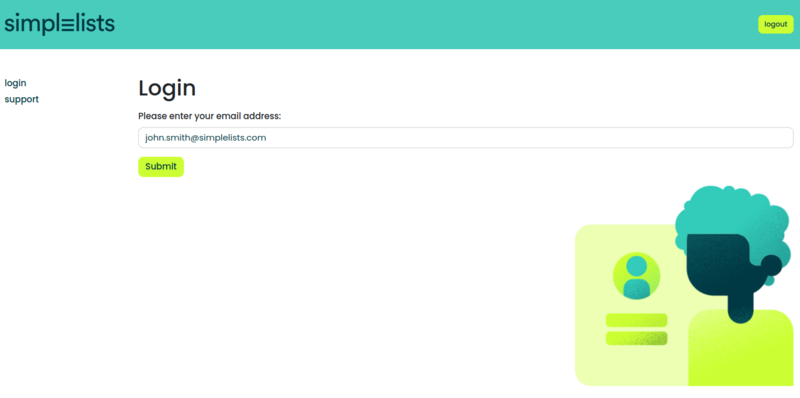
- Enter your Azure enabled email address and click submit.
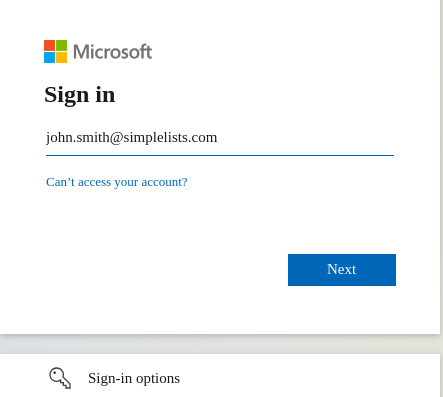
If everything is correctly configured you will be presented with the Azure login page.
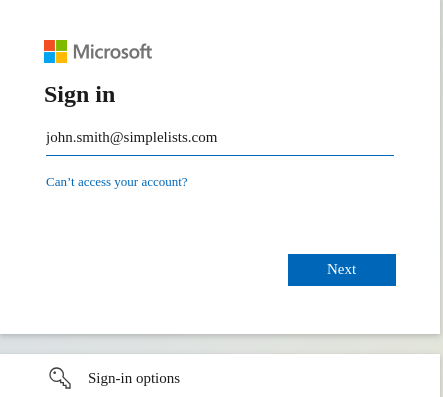
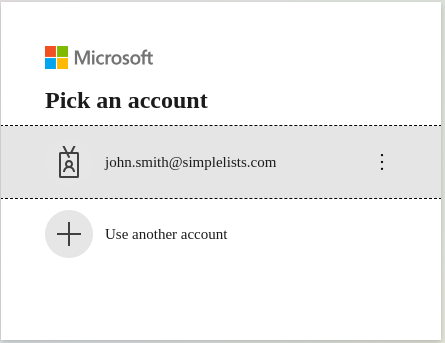
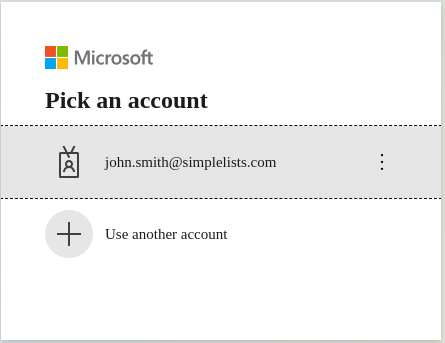
- Enter the "Email address, phone number or Skype" or pick the account from the list
- Click Next
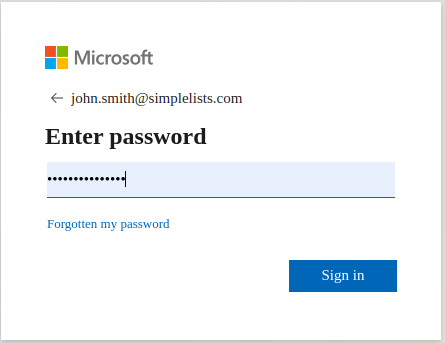
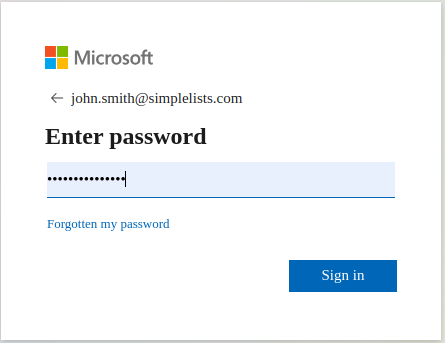
- Enter your password
- Click Sign In
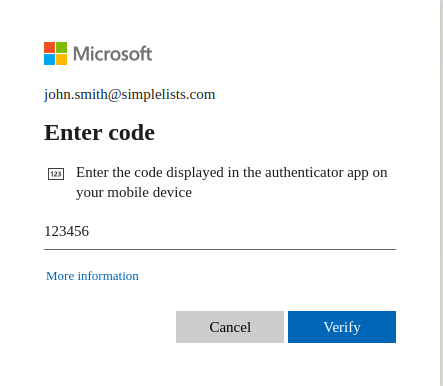
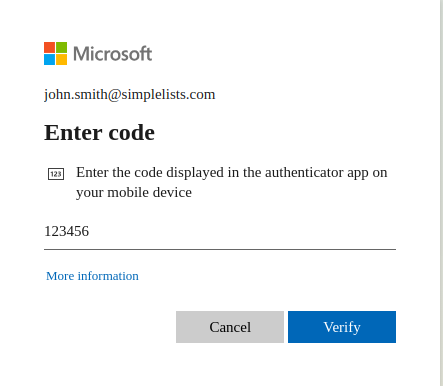
- You may need to enter your two factor authentication code (2FA)
- Click Verify
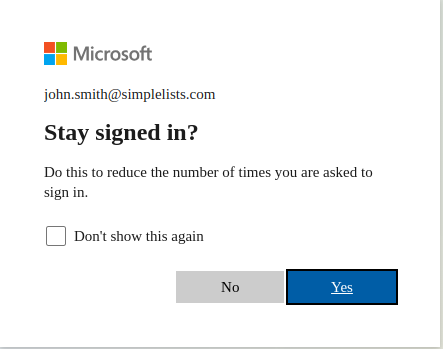
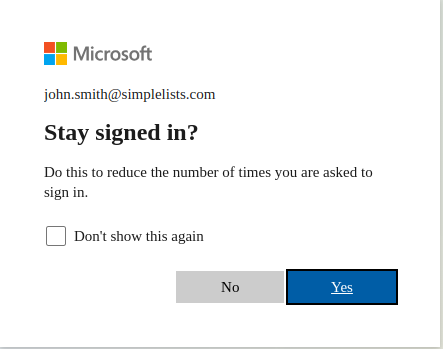
- Choose whether you want to stay logged in
- Click Yes or No
Why it matters
A successful test confirms the entire chain is working: Simplelists redirects to Azure, Azure authenticates the user, Azure sends a signed SAML response back, and Simplelists accepts it. If any step fails, you’ll see an error rather than reaching the Simplelists dashboard.
Azure Optional Configuration
Optional sections below
The following sections cover advanced security options. For first-time setup, skip these until basic login is working. Each option adds security but also adds complexity and potential failure points. Enable them one at a time after confirming the basic integration works.
Azure Verification certificate
Context
This optional feature adds an extra layer of security by requiring Azure to verify that SAML authentication requests genuinely originated from Simplelists. Without this, Azure accepts requests from any source that knows your Entity ID.
Configuring a verification certificate requires Microsoft Entra (Azure) to verify that the SAML AuthnRequest was properly signed by Simplelists with the expected certificate.
This provides your application with a little additional security as only Simplelists can correctly authenticate but it does mean that login can ONLY be initiated from the Simplelists page. You cannot initiate login from the Microsoft Entra (Azure) application list.
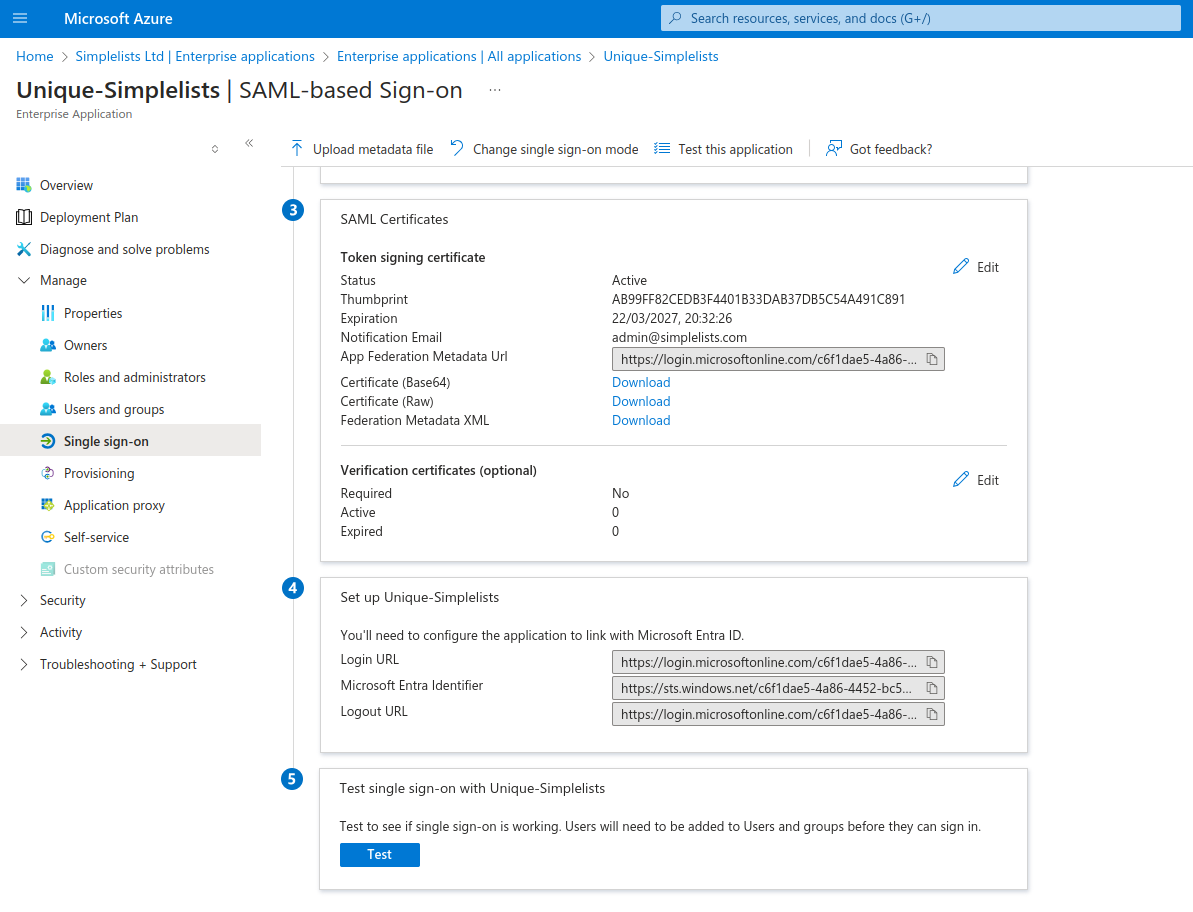
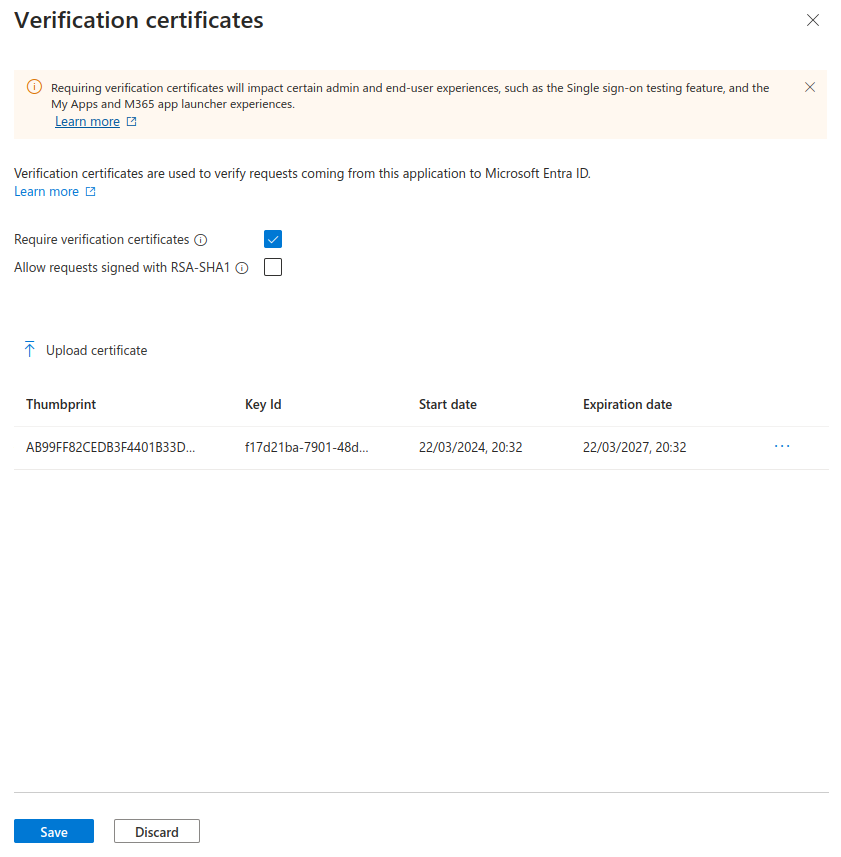
- Click Edit in the Verification certificates (optional) section
Why it matters
When enabled, Azure will reject any authentication request that isn’t signed with the expected Simplelists certificate. This prevents attackers from initiating authentication flows even if they know your Azure application’s Entity ID. The trade-off is that IdP-initiated login (clicking the app in Azure’s My Apps) will no longer work.
Verification Certificates
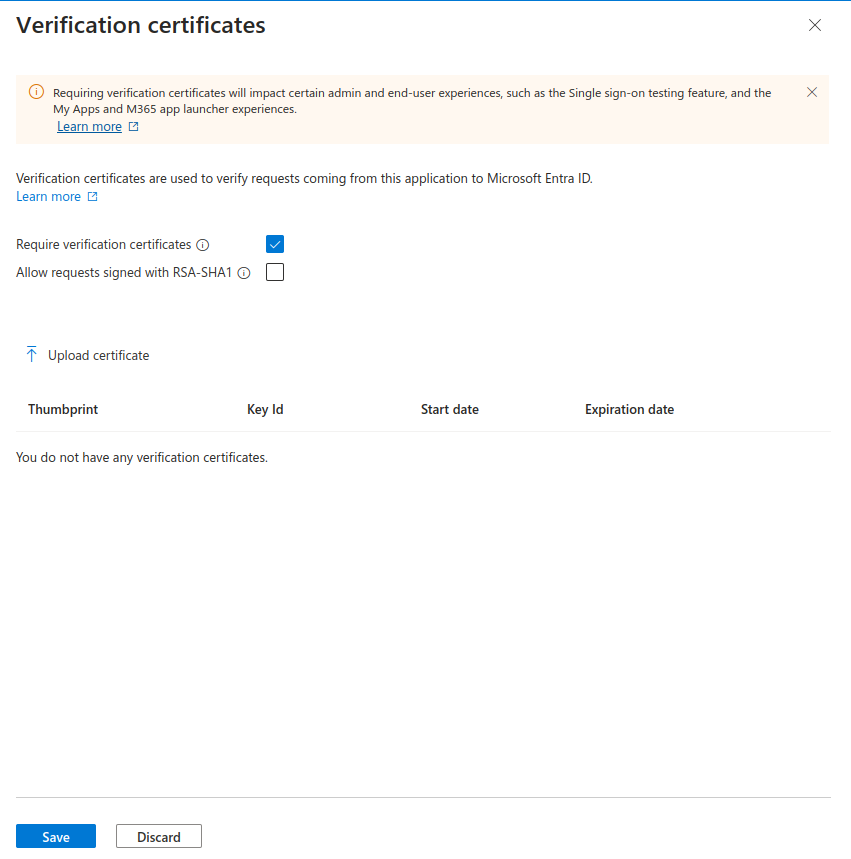
- Click Require verification certificates
- Click Upload certificate
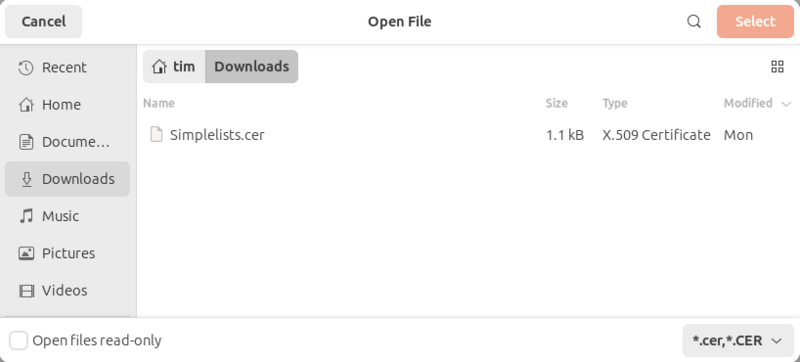
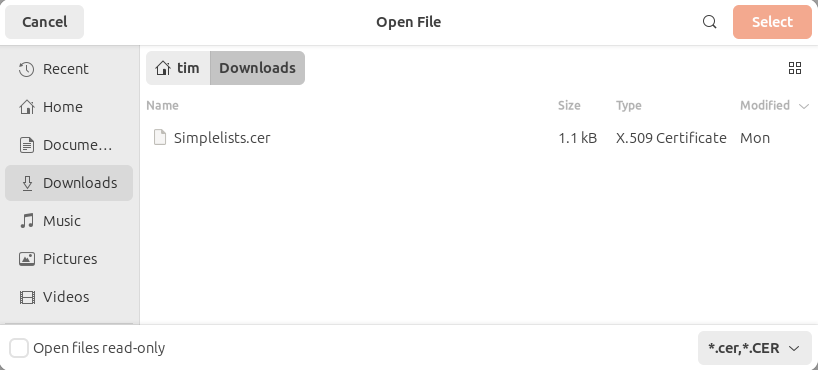
- Select the Simplelists signing certificate
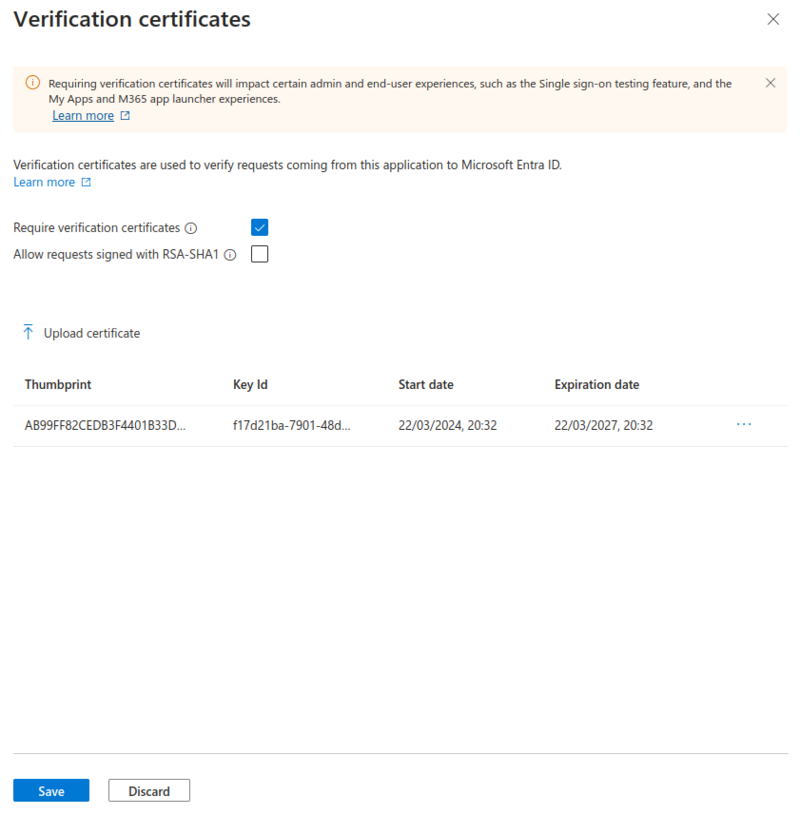
- Click Save
- Close the settings with the X.
Common issues
- "Login stopped working after enabling verification certificates" — Confirm you uploaded the correct Simplelists signing certificate (not the Azure certificate). The certificate must match what Simplelists uses to sign its authentication requests.
- "IdP-initiated login no longer works" — This is expected behavior. With verification certificates enabled, users must start login from the Simplelists page, not from Azure’s My Apps.
Azure - Enable SAML Token Encryption (Optional)
Context
Token encryption adds another layer of security by encrypting the SAML assertion contents so they cannot be read even if intercepted. This is an advanced security feature typically required only in high-security environments.
Recommendation
Get everything else working first, then decide if you want to implement this. Token encryption makes troubleshooting significantly harder because you cannot inspect the SAML assertion in browser developer tools.
SAML token encryption increases the security by fully encrypting the data sent from Azure to the web Application. The user will be unable to determine what data is in the Assertion. However, it also makes it difficult to troubleshoot because you cannot view the Assertion in the browser. Get everything else working first then decide if you want to implement this.
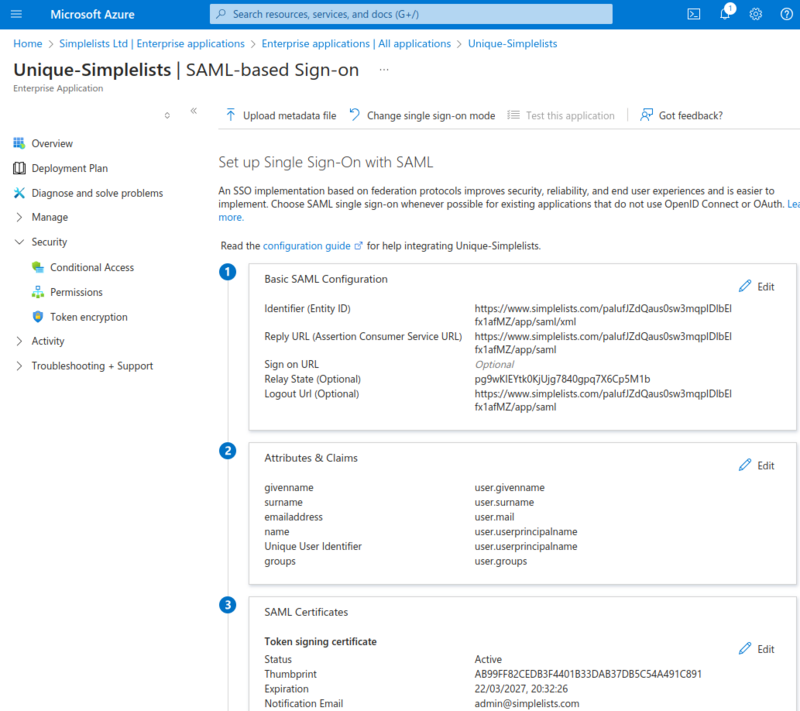
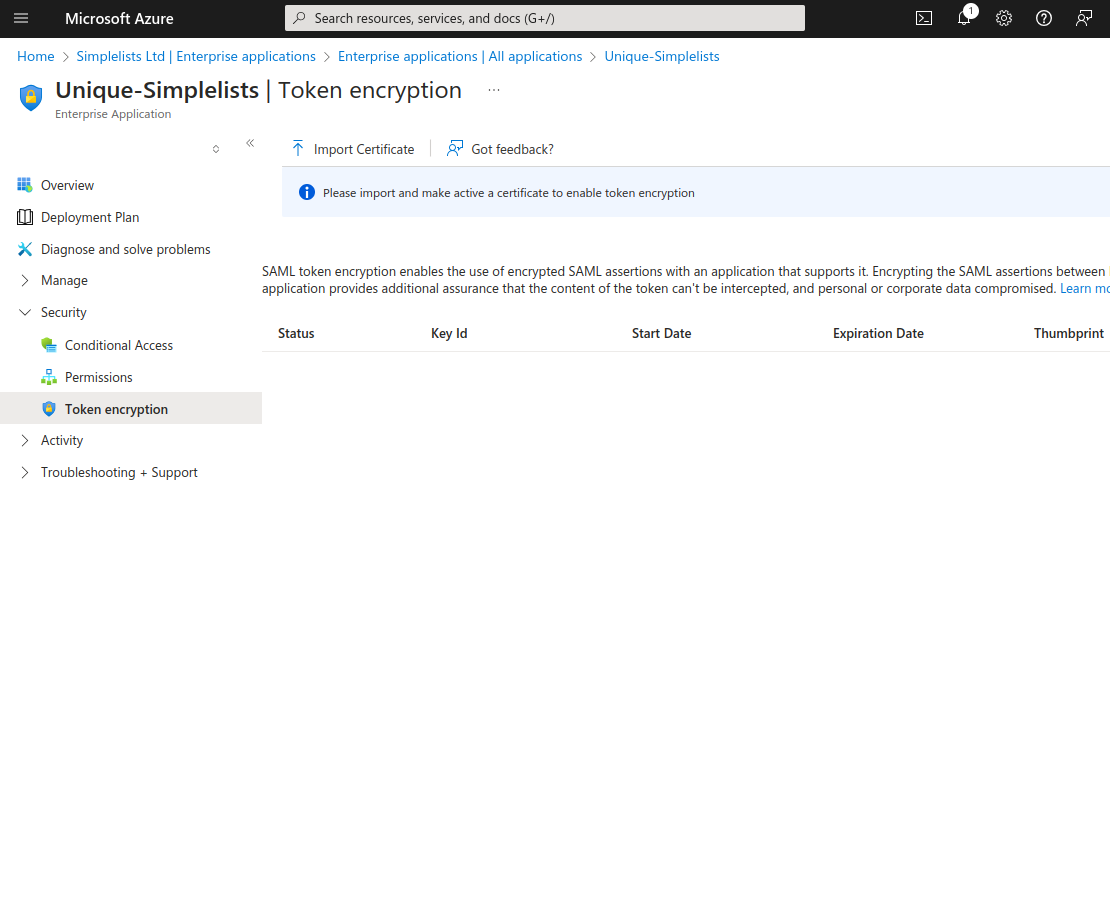
- Click Security from the left hand menu
- Click Token Encryption
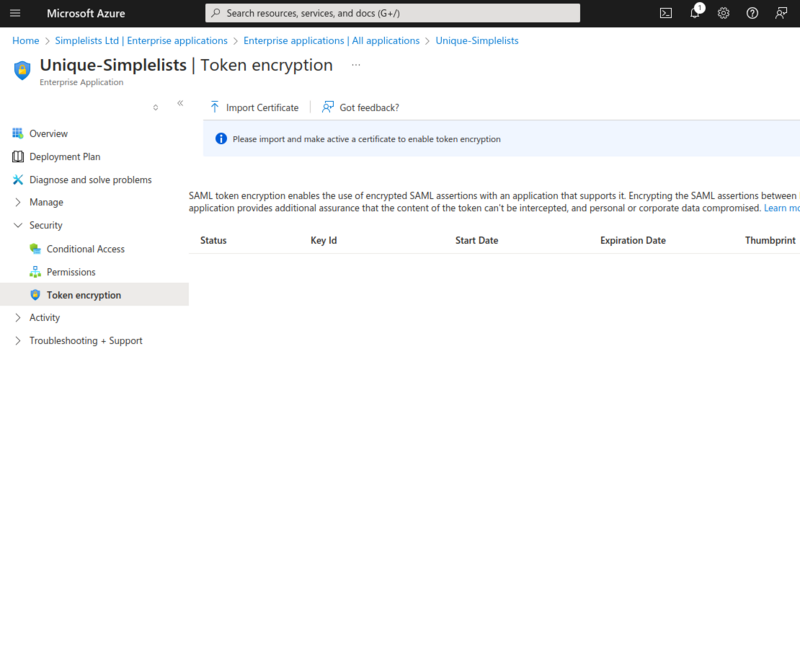
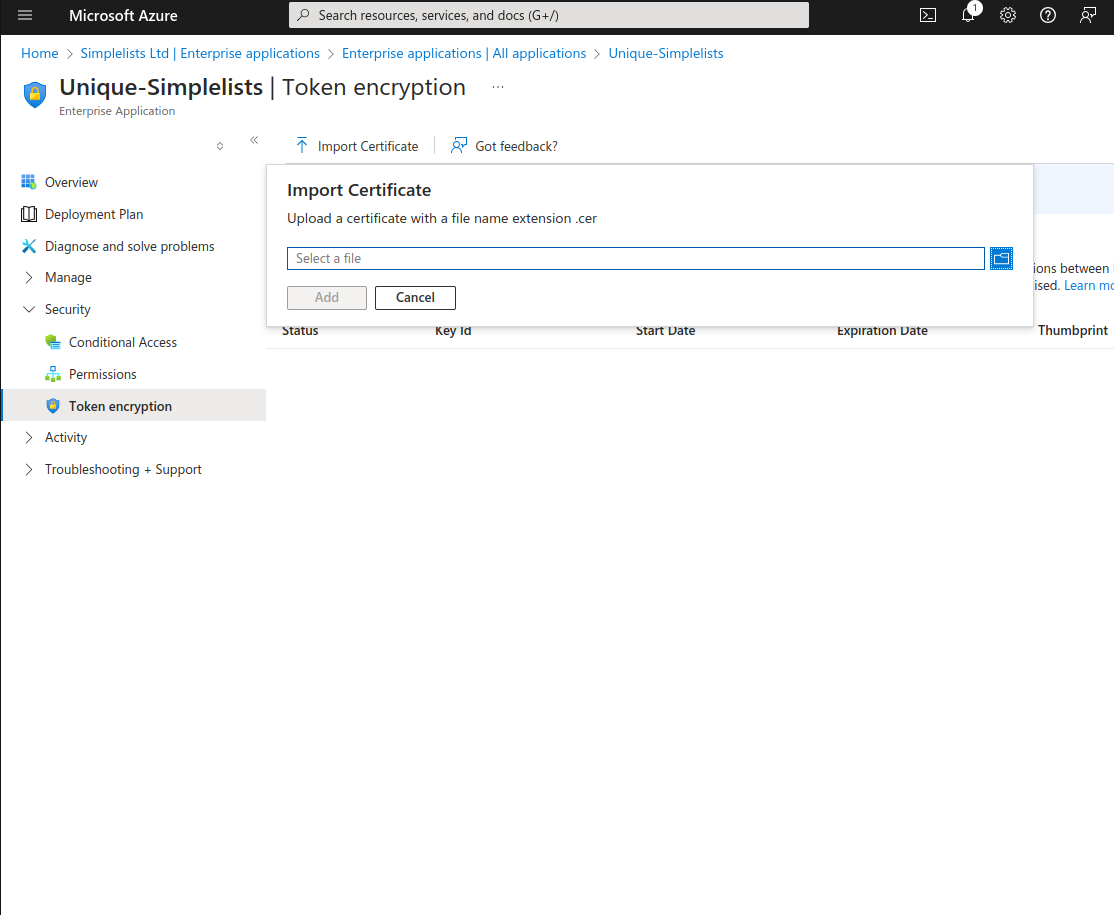
- Click Import Certificate
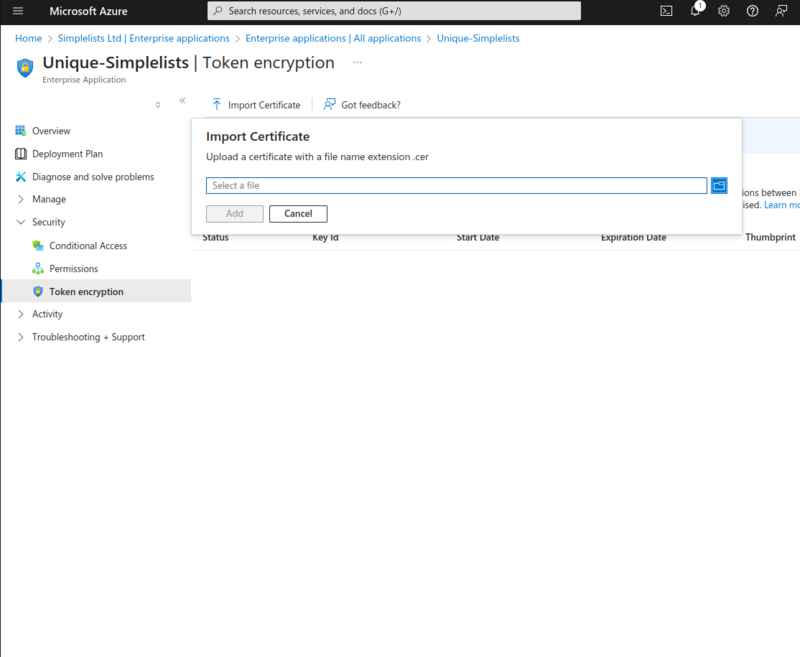
- Select the simplelists.cer file that you can download from the Authentication Settings in Simplelists
Why it matters
Without encryption, the SAML assertion (containing the user’s identity information) is signed but readable. With encryption enabled, even if an attacker intercepts the assertion, they cannot read its contents without the private key held by Simplelists. This protects against man-in-the-middle attacks that might capture the assertion data.
Activate the Encryption Certificate
- Click on the three dot at the right side of the certificate
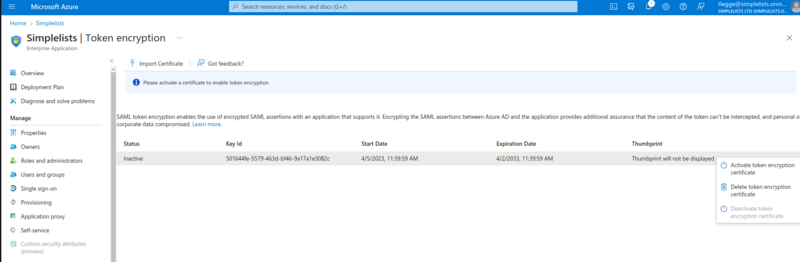
- Click Activate Token Encryption Certificate
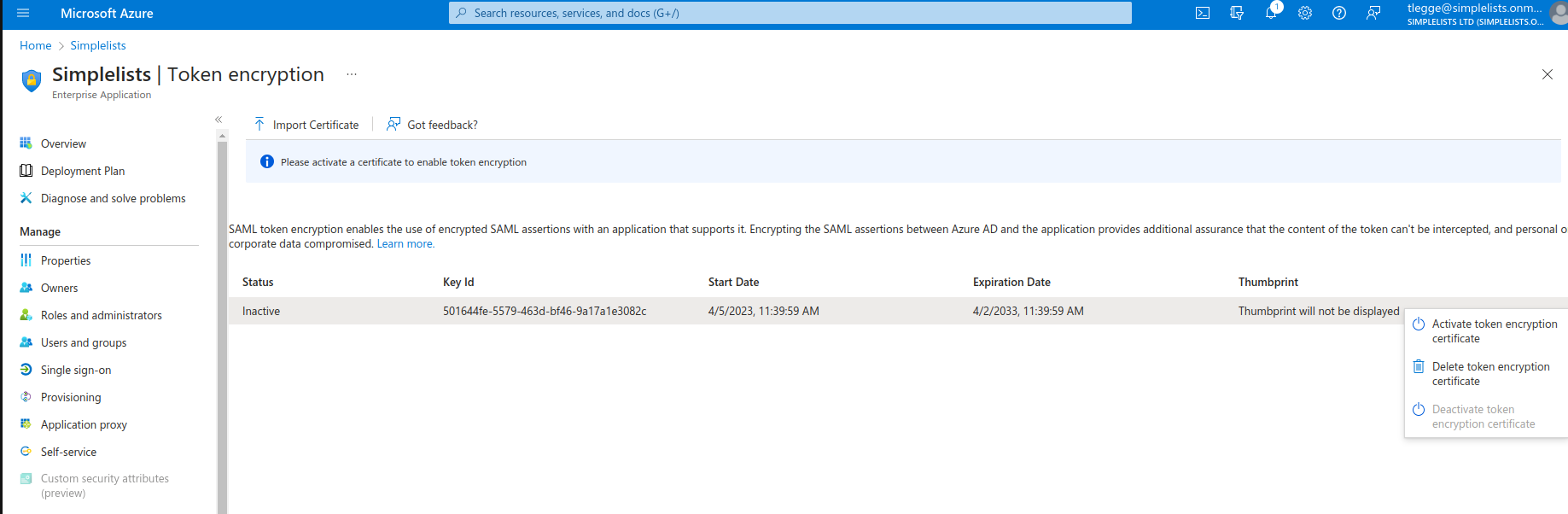
Encrypted Assertions are now enabled. However you will need to complete the next step to make it work correctly.
Sign the SAML response and Assertion (Optional)
Context
When token encryption is enabled, you must also configure Azure to sign both the SAML response and the assertion. This ensures the encrypted content can be properly validated by Simplelists.
This step is only required if you enabled token encryption.
Get everything else working first then decide if you want to implement this (and token encryption).
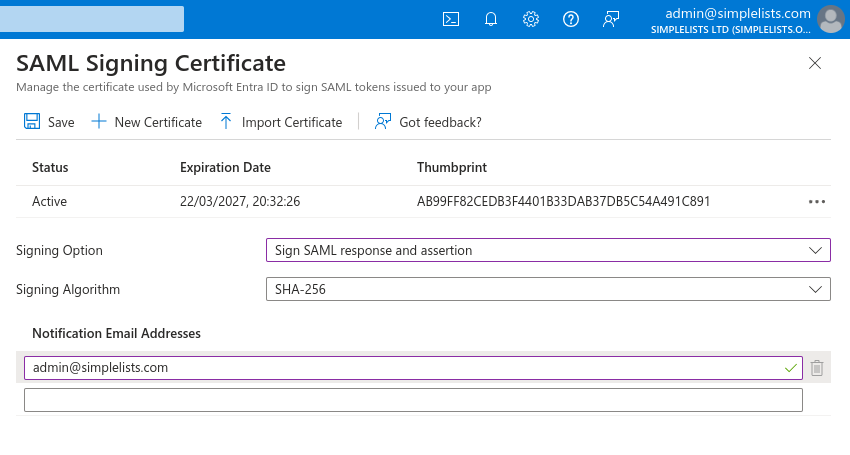
- Click Edit to the right of Token signing certificate
- Select Sign SAML response and assertion from the Signing Option drop-down
- Click Save
Common issues
- "Decryption failed" or signature errors after enabling encryption — Confirm you completed both steps: activating the encryption certificate AND changing the signing option to "Sign SAML response and assertion".
- "I can’t troubleshoot login issues" — This is expected with encryption enabled. Consider temporarily disabling encryption (deactivate the certificate) to inspect the SAML assertion during troubleshooting, then re-enable once the issue is resolved.
Enable Automatic user creation (Optional)
Context
By default, users must already exist in Simplelists before they can log in via SAML. Automatic user creation allows new users to be provisioned in Simplelists automatically when they first authenticate via Azure, with permissions determined by their Azure group membership.
For IdP initiated login you can choose to have users automatically created. Simplelists uses "Automatic user creation groups" to assign user permissions.
Modify the Authentication Provider to add group
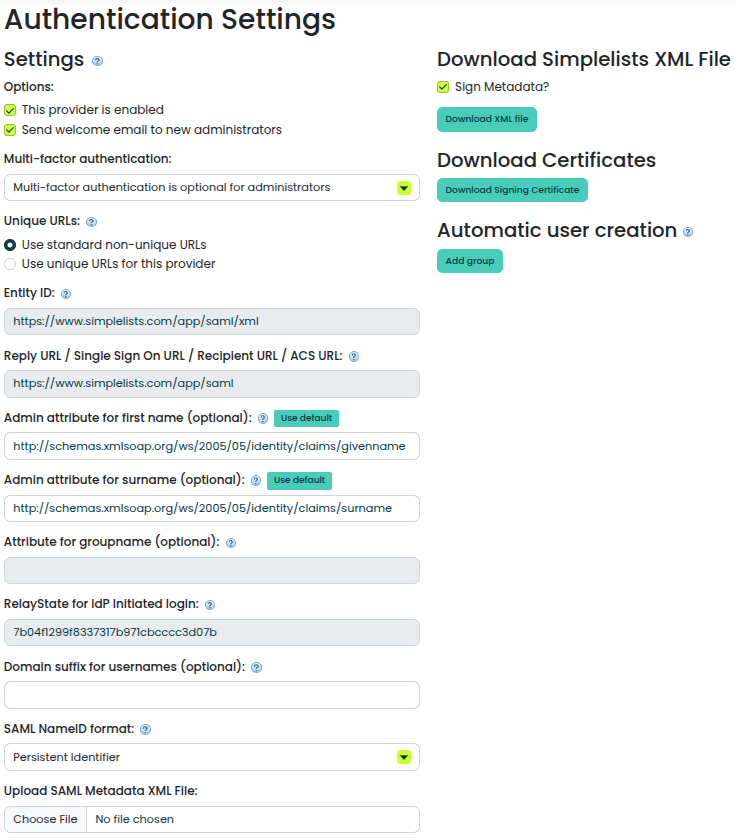
- Open the Authentication Settings that you created above
- Click Add group
Create the new Group
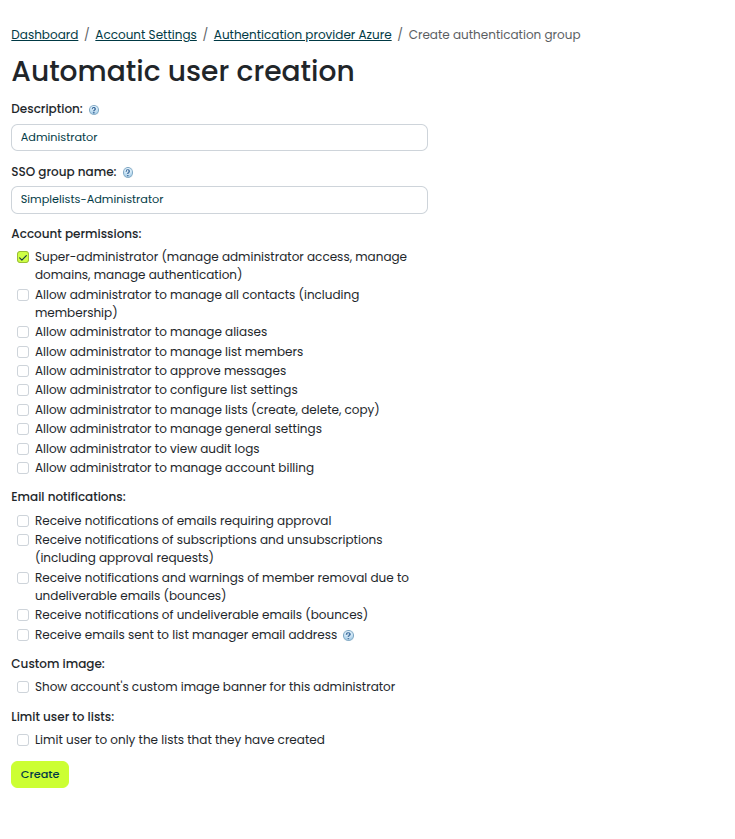
- Enter a free form description (It will appear on the Authentication Provider Page)
- Administrator
- Enter the SSO Group Name (that will be sent by Azure)
- SimpleLists-Administrator
- Select the Account Permissions
- Click Create
Note that the created groups are listed under the existing groups and show the description, not the SSO group name. The SSO group name (required to match Azure’s groups) can be viewed by clicking on the group name.
Why it matters
The SSO Group Name must exactly match the group identifier that Azure sends in the SAML assertion. If there’s a mismatch, the user will either not be created or will be created without the expected permissions. Azure can send groups as either names or Object IDs depending on your Azure configuration.
Enable SAML Groups
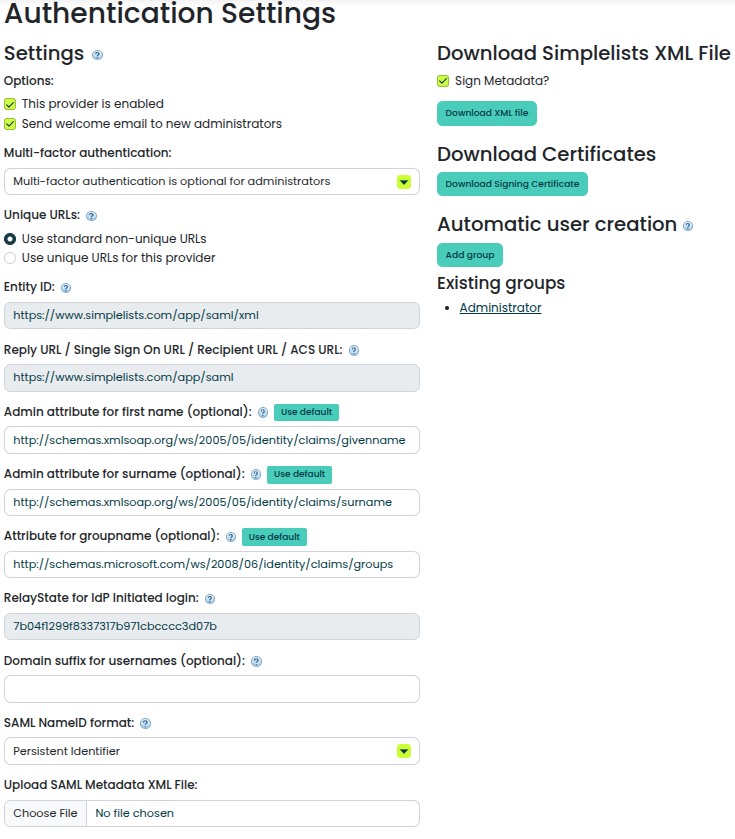
- Set the Attribute for groupname (optional)
- http://schemas.microsoft.com/ws/2008/06/identity/claims/groups
- Save the authentication provider
Note: The group attribute id might be different. It will need to match the attribute name in the SAML assertion.
Common issues
- "User created but with wrong permissions" — The SSO Group Name in Simplelists doesn’t match what Azure is sending. Check the SAML assertion (using browser developer tools or a SAML tracer extension) to see the exact group values Azure sends.
- "User not created automatically" — Confirm the user is a member of a group in Azure that maps to a group configured in Simplelists. Also verify the group claim attribute name matches between Azure and Simplelists.
Test login with a new user
At this point you can attempt to login to Simplelists from the IdP applications page. Select a user that is associated with the correct group (that does not already have a Simplelists account). The user should be automatically created.
Troubleshooting / FAQs
This section provides symptom-to-cause guidance for common issues. No new configuration steps are introduced here.
AADSTS50105: The signed in user is not assigned to a role for the application
The user hasn’t been assigned to the Simplelists enterprise application in Azure. Return to the Users and Groups section and add the user or a group they belong to.
AADSTS700016: Application with identifier ’...’ was not found
The Entity ID in the SAML request doesn’t match any application in your Azure tenant. This typically means the metadata file wasn’t uploaded correctly, or you’re testing against the wrong Azure tenant.
“Signature validation failed” or “Invalid signature”
The certificate Simplelists is using to validate Azure’s response doesn’t match Azure’s current signing certificate. Re-download the Certificate (Base64) from Azure and upload it to your Simplelists Authentication Provider.
Response destination does not match assertion consumer service URL
The Assertion Consumer Service (ACS) URL configured in Azure doesn’t match what Simplelists expects. This usually happens if the metadata file was modified or if you’re using an incorrect metadata file. Re-download and re-upload the metadata from Simplelists.
Login works from Simplelists but fails from Azure’s My Apps portal
The RelayState is missing or incorrect in Azure’s Basic SAML Configuration. Verify the RelayState value matches exactly what’s shown in your Simplelists Authentication Provider settings.
Login redirects to Azure but returns an error immediately
Multiple causes are possible: the user isn’t assigned to the application, the Entity ID is wrong, or there’s a certificate mismatch. Check the Azure sign-in logs for the specific error code and message.
After Azure certificate renewal, logins fail
Azure periodically rotates its signing certificates. When this happens, you must download the new certificate from Azure and upload it to Simplelists. Azure typically provides advance notice of certificate expiry in the Enterprise Application settings.
Users are created but have no permissions
The group mapping between Azure and Simplelists isn’t configured correctly. Verify that the SSO Group Name in Simplelists exactly matches the group identifier Azure sends (which may be a group name or an Object ID, depending on your Azure claims configuration)