
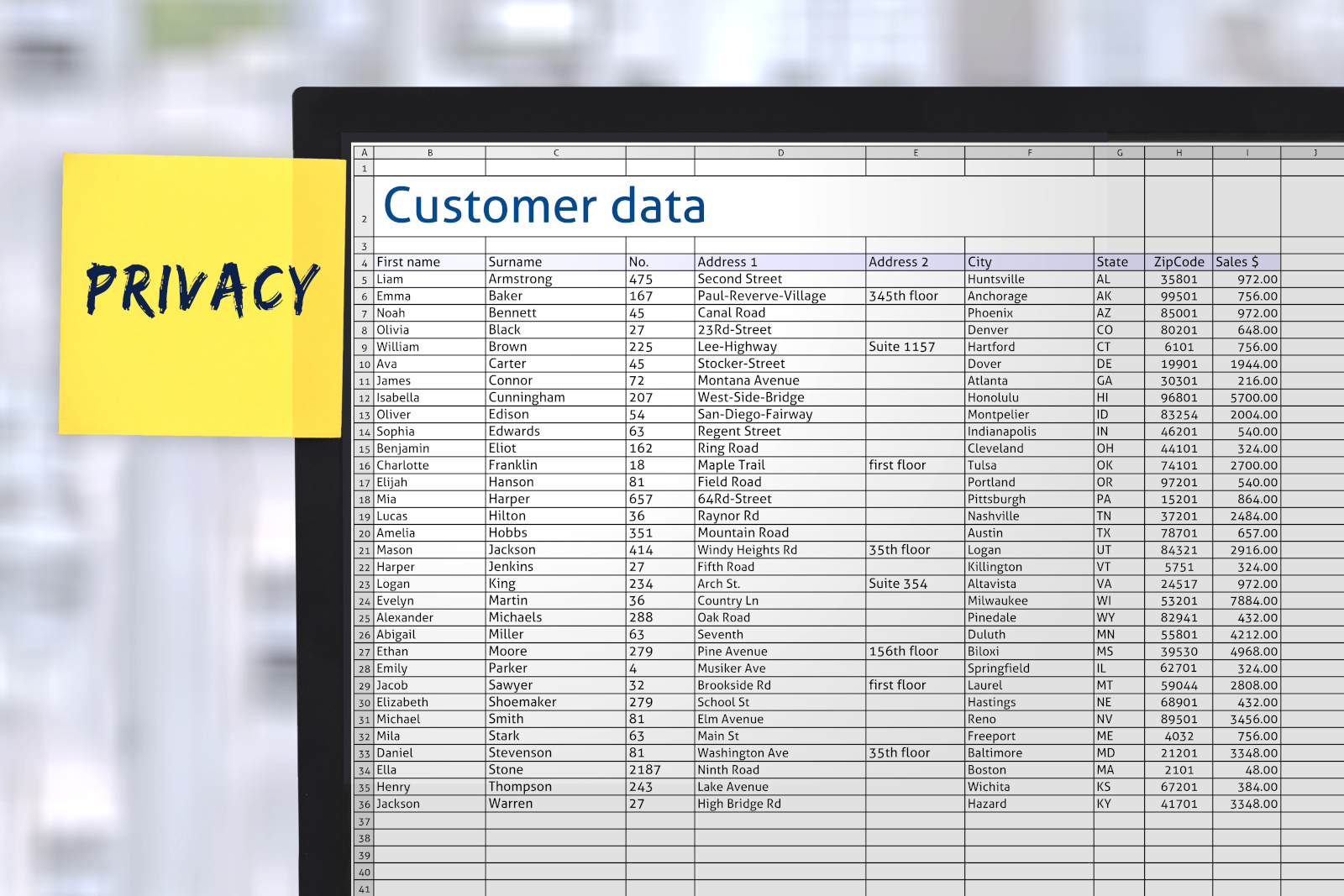
You can add members to your Simplelists email list from a spreadsheet by exporting your contacts as a CSV file and uploading it via the contacts or list members page. The process takes a few minutes and works for lists of any size, from a dozen contacts to several thousand.
Manual entry is fine when a list is new and small. Once you are transferring members from an existing spreadsheet, a club database, or a previous system, uploading a CSV file is the right approach. It is faster, less error-prone, and it handles duplicate detection automatically. Simplelists, ISO 27001 certified by NQA (a UKAS-accredited certification body), manages the import, the confirmation process, and bounce handling from that point forward.
This guide covers the three things you need to get right: preparing your spreadsheet, running the upload, and understanding what happens next. The steps reflect the actual Simplelists interface, so you can follow them directly.
Before you upload: a note on consent
Before you add members from a spreadsheet, the question to answer is whether those contacts have already consented to receive this type of email communication.
If you are migrating members from an existing list they have already opted into, you can import them without sending confirmation requests. They have already confirmed. Adding a second confirmation request is unnecessary and can confuse long-standing members.
If you are importing contacts from a general database, a directory, or any list where email consent was not specifically given for this type of communication, the picture is different. In the US, the FTC’s CAN-SPAM Act compliance guidance establishes a clear framework: commercial emails must include a mechanism to opt out, and senders must honor opt-out requests promptly. For non-commercial group email, the standard is less prescriptive, but the practical advice is the same: if members have not specifically opted in to this type of communication, the confirmation request step in Simplelists is there for a reason. Use it.
In the UK and EU, the ICO’s guidance on valid consent under UK GDPR is clear that consent must be specific to the purpose of the communication. What matters is whether the consent you hold covers the type of emails this list will send – not which specific list the contact is on. When in doubt, the confirmation request option is the simplest way to put documented consent on record.
Existing members vs. new contacts: If you are migrating members from a list they already belong to, skip the confirmation request on import. If you are adding contacts who have not previously opted in to this type of communication, send confirmation requests. Simplelists gives you the choice at the upload options step. We see organizations get into trouble when they treat bulk import as a marketing action rather than a list management action. Simplelists is a group communication tool, not a broadcast platform. The contacts you add should be people who have a reason to be on this list and know it. That framing makes every decision in the upload process easier.
How to format your spreadsheet
Your spreadsheet needs one column as a minimum: the email address. You can also include columns for firstname and surname, as well as notes for the contact and whether their delivery is paused. For Multiple List accounts, you can also specify the lists the contact should be a member of. If you have any custom fields configured in your account, then you can also included these. The columns can be in any order.
The step most likely to cause a failed upload is leaving the header row in the file. Your spreadsheet probably has column titles at the top: “First Name”, “Last Name,” “Email.” Remove them before saving. Simplelists treats the first row of the CSV as data, not labels. A header row in the file means the first entry Simplelists tries to add has “First Name” as a first name and your column title as an email address, which fails validation.
Delete the header row entirely if possible before you import, although if it remains then it will simply be notified as a single error during the upload.
CSV format: what the upload expects
- One column minimum: email address.
- Optional columns: first name, last name, notes, list membership, custom fields.
- No header row. Simplelists reads the first row as a member record.
- Names can be blank. Contacts without a name will import without error.
- Save as .csv using Save As in your spreadsheet program – not .xlsx or .ods.
Once the data is clean, save the file as a .csv using the Save As dialog. Most spreadsheet programs default to their own format (.xlsx, .ods, .numbers). You need to change the file type to CSV (comma-separated values) explicitly. Name the file something recognizable before you save it. You will need to find it again in the next step.
How to upload the file in Simplelists
Log in to Simplelists and go to the list members page for a Single List account, or for Multiple List accounts go to either the All Contacts page or a list membership page.
- Select your file. Click the AddUpload file menu. Use the file picker to locate the CSV file you saved. Once selected, click Submit.
- Set your upload options. There are a number of choices for upload options depending on the account type and whether you are uploading to a single list. See the table below for details.
- Map your columns. On the next screen, assign each column in your CSV to the correct member field. If a column contains data you don’t want to import, leave it unmapped. Click Submit files for import.
| Option | Default | What it does |
|---|---|---|
| Update existing entries where the email address matches | On | If an email address already exists in your address book, the import updates the details associated with it. |
| Update existing entries where the full name matches exactly | Off | A checkbox within this option also lets you update the email address if the full name matches – turn that on only if your name data is accurate enough to use as a matching key. |
| Send confirmation requests to all new uploaded email addresses | Your choice | Sends a confirmation email to all addresses in the upload that are not already confirmed members. Leave off for migrated members. Turn on for new contacts who haven’t previously opted in to this type of communication. |
| Also add all uploaded members to a list | Your choice | For a Multiple List account, optionally add the uploaded contacts to this list as well as the main contact list. |
| Remove all members from the address book that are not in the uploaded file | Off | Removes any current contact entries that are not in the uploaded file. Only select this if you intend your CSV to be the definitive member list. Leave it off for a standard top-up import. |
After the upload: checking and managing your new members
Go to the list members or all contacts page. New members will appear there. If you sent confirmation requests, you will see which members are confirmed and which are pending. Members who have not yet confirmed will not receive list emails until they do.
Confirmation request emails go out as soon as you click Finish. Each one asks the recipient to confirm their subscription by clicking a link. The process is simple from the member’s side. For most lists, confirmation rates on imported members are high because those members expected to be on the list.
From the point of upload, Simplelists handles bounce management automatically. If an imported address starts bouncing, the system removes it and notifies you. This matters more than it might seem: a list with accumulated bad addresses degrades the sender reputation of the whole list over time, which means fewer emails reach inboxes – not just for the bouncing address, but for everyone. Automated bounce handling is one of the details that keeps a list healthy without requiring the administrator to check it manually. Simplelists has carried SuretyMail IADB anti-spam accreditation since 2007, which means inbox placement is not something left to chance.
If you want to go further with list management once your members are imported, the email list management guide covers the full range of settings: moderation, archiving, digest options, and how to structure a list for different types of group communication.
Frequently asked questions
What format does a CSV need to be for a mailing list import?
Your CSV needs a minimum of one column: email address. It can also include columns for first name, last name, notes, paused delivery, custom fields and list membership. There should be no header row. Names can be left blank for any member where you only have an email address. Save the file as .csv using Save As in your spreadsheet program.
Can I import contacts from a spreadsheet if they have not confirmed their email address yet?
Yes, you can import them, and Simplelists will send confirmation requests to those addresses if you select that option at the upload options step. Members remain pending until they confirm unless the account is verified (they will not receive list emails in the meantime). For contacts who have not previously opted in to this type of communication, using the confirmation request option is the correct approach under both US and UK email regulations.
What happens if some email addresses in my spreadsheet are already on the list?
Simplelists handles duplicates automatically. If an email address in your CSV already exists in the address book, the system updates the name associated with that address rather than creating a duplicate entry. This behavior is on by default. It means you can safely re-import an updated spreadsheet without creating duplicate member records.
Does Simplelists notify existing members when I bulk-upload new contacts?
No, adding members to the list does not in itself trigger any notification to existing members. However, if a list has a welcome message, then this will be sent as with any other method of a list member being added. The only other emails that go out at upload time are confirmation requests to newly added addresses, and only if you select that option. Existing confirmed members are not affected by a bulk import and do not receive any notification that the member list has changed.
Ready to import your members?
Try Simplelists free for a month. Upload your first list, test the confirmation process, and see how bounce handling works – all before committing to a paid plan. No credit card required.