

To add a footer to a group email, open your list’s email settings, type your text into the footer box and save. Put an unsubscribe link in it so members can leave without asking you. For a logo or links, paste HTML into the separate HTML footer box.
If you run a group email list, the footer is the only text you write once and every member reads every time. Most administrators set it up years ago and never look again, until a member asks how to leave.
What a group email footer is for and what belongs in it
A footer is a block of text added to the bottom of every message your list sends. You write it once, and Simplelists adds it to each email so nobody retypes it.
A good footer does four things. It tells the member who the message is from and why they are getting it. It also shows how to leave the list and how to reach a real person.
A well-designed footer can also help your emails comply with the law and avoid being marked as spam.
Our older post explains why a footer matters if you want the longer argument.
Where to find the footer settings in Simplelists
Log in to your account and open the list you want to change. Go to List settings, then open the Email modification tab. Both footer boxes are on that tab. The screenshot below show the relevant settings page.
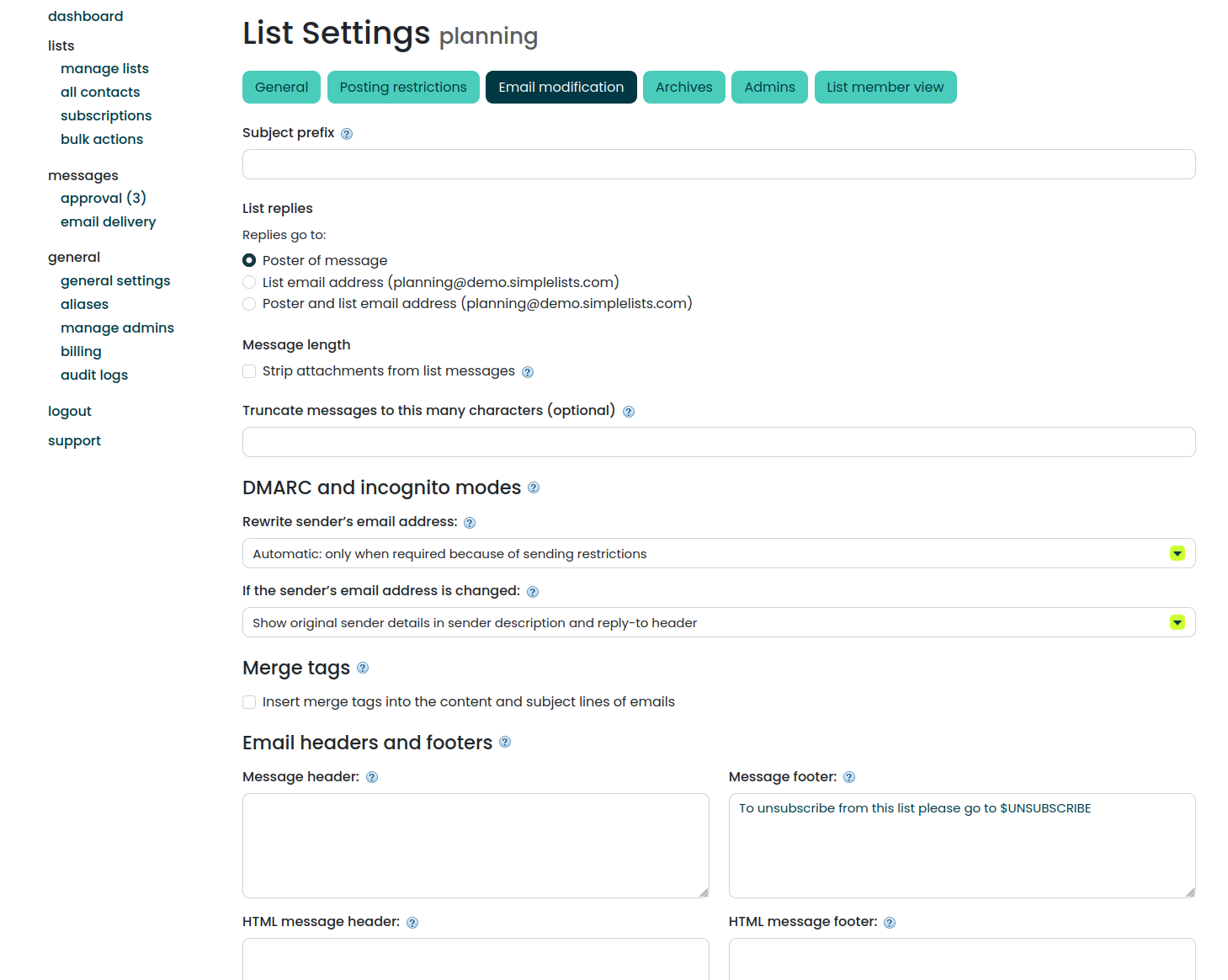
Our step-by-step setup guide covers the rest of the list settings.
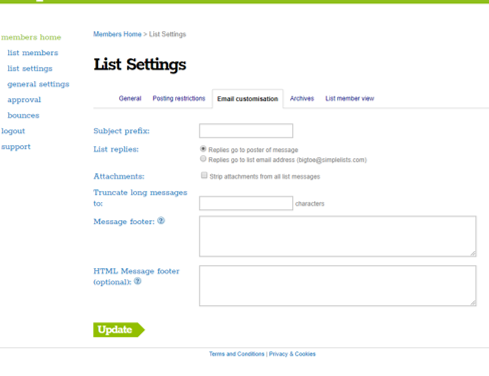
Adding a plain text footer with an unsubscribe link
To add a plain text footer, type your text into the Message footer box on the Email modification tab and save. Put the $UNSUBSCRIBE tag where you want the unsubscribe link to appear. Simplelists fills in the tag with the URL to unsubscribe from the list, unique for the member.
Step 1: Locate tab
Step 2: Locate setting
Step 3: Type footer
Step 4: Save
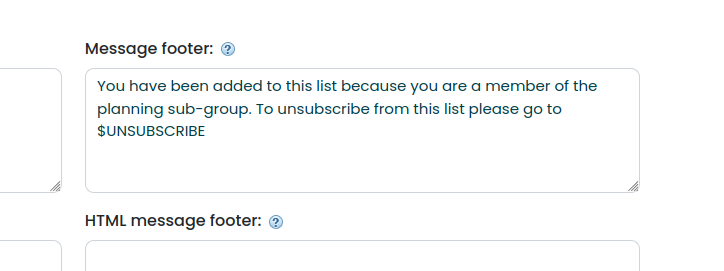
A short working footer might read: your list name and description, then the line Unsubscribe from this list here: $UNSUBSCRIBE. That is enough for most lists.
Important note
The tag is $UNSUBSCRIBE, in all capital letters. Type it exactly as shown.
We recommend $UNSUBSCRIBE on every list, and we treat the plain text footer as the baseline. It is the footer that backs up every email, because HTML emails fall back to it when no HTML footer is set. Send a test to yourself and read the footer the way a member would.
The tag is one of several merge tags for dynamic and personal content. The full list is on that page.
Adding an HTML footer for logos, links and brand colors
Use the HTML footer message box when you want a logo, a styled link or your organization’s colors. It sits on the same Email modification tab. Use inline styles, because email clients such as Gmail and Outlook.com recognise them. Logos must be inserted as a hyperlink to a version published online, from your own website.
Here is the part that catches people. Once the HTML box is filled in, emails sent in HTML use it instead of the plain text footer. They do not show both. So put $UNSUBSCRIBE in both boxes. Otherwise your HTML emails go out with no unsubscribe link.
Step 1: Locate setting
Step 2: Input footer text
Step 3: Check variable
Step 4: Save and test
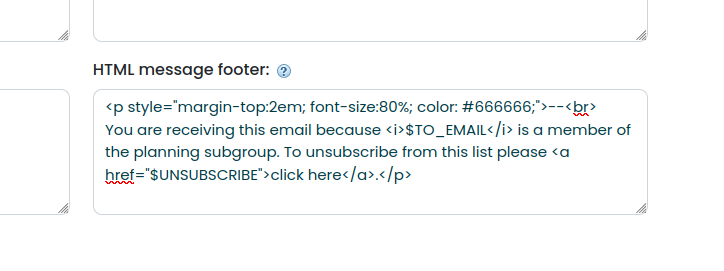
Keep the design light. A logo, a website link and a contact line are enough. A heavy footer can dilute the list message itself if it is short, and members came for the message. Footers sit alongside the other list controls in our group email hosting.
Personalizing the footer
Merge tags work in footers without any extra setup. Add $TO_FIRSTNAME to speak to a member by first name, or $LIST_NAME to name the list. If a member has no value stored for a tag, the footer shows a blank. Test with a member who has a missing field.
Ready to check your own footer?
Start a free trial without a credit card. Set up a working test list in minutes and send yourself a message to check your footer.
Frequently Asked Questions
How do I add a footer to a mailing list email?
Open your list in Simplelists and go to its settings. Open the Email modification tab and type your text into the Message footer box. Save the settings and the footer is added to the messages the list sends. Add $UNSUBSCRIBE where you want the unsubscribe link, then send yourself a test to check how it reads.
How do I add an unsubscribe link to group emails?
Put the $UNSUBSCRIBE tag in your footer, in capital letters. Simplelists fills it in with the URL to unsubscribe from the list, unique for the member. If you also use an HTML footer, add the tag there too. Once the HTML footer is filled in, emails sent in HTML use it instead of the plain text one.
Can I use an HTML footer with Simplelists?
Yes. The Email modification tab has a separate HTML footer message box. Paste your HTML there, using inline styles. Once filled in, it replaces the plain text footer on emails sent in HTML, so include $UNSUBSCRIBE in it. Keep the design light, with a logo, a link and a contact line. A logo must be inserted as a hyperlink to a copy of it published online on your own website.
Can I put a member’s first name in the footer?
Yes. Add $TO_FIRSTNAME to the footer and Simplelists fills in each member’s first name. If a member has no first name stored, the tag leaves a blank space. Write the line so it reads cleanly either way. Test with a member who has no name on file.